

Instrument Management#
The NexusLIMS Instrument Manager provides an interactive terminal user interface (TUI) for managing the instrument database. It offers a modern, user-friendly alternative to direct SQL database manipulation.
Warning
This application directly modifies your NexusLIMS database. Back up your database file before making any changes, especially before deleting instruments!
Launching the TUI#
The instrument manager is available as a command-line tool:
uv run nexuslims instruments manage
The TUI will automatically initialize the database if it doesn’t exist yet.
Tip
Need a quick, scriptable summary of your instruments without opening the TUI?
Use nexuslims instruments list for a plain-text table or JSON output.
See the nexuslims instruments list section of the CLI reference for details.
Main Interface#
When you launch the instrument manager, you’ll see a table listing all instruments in the database:
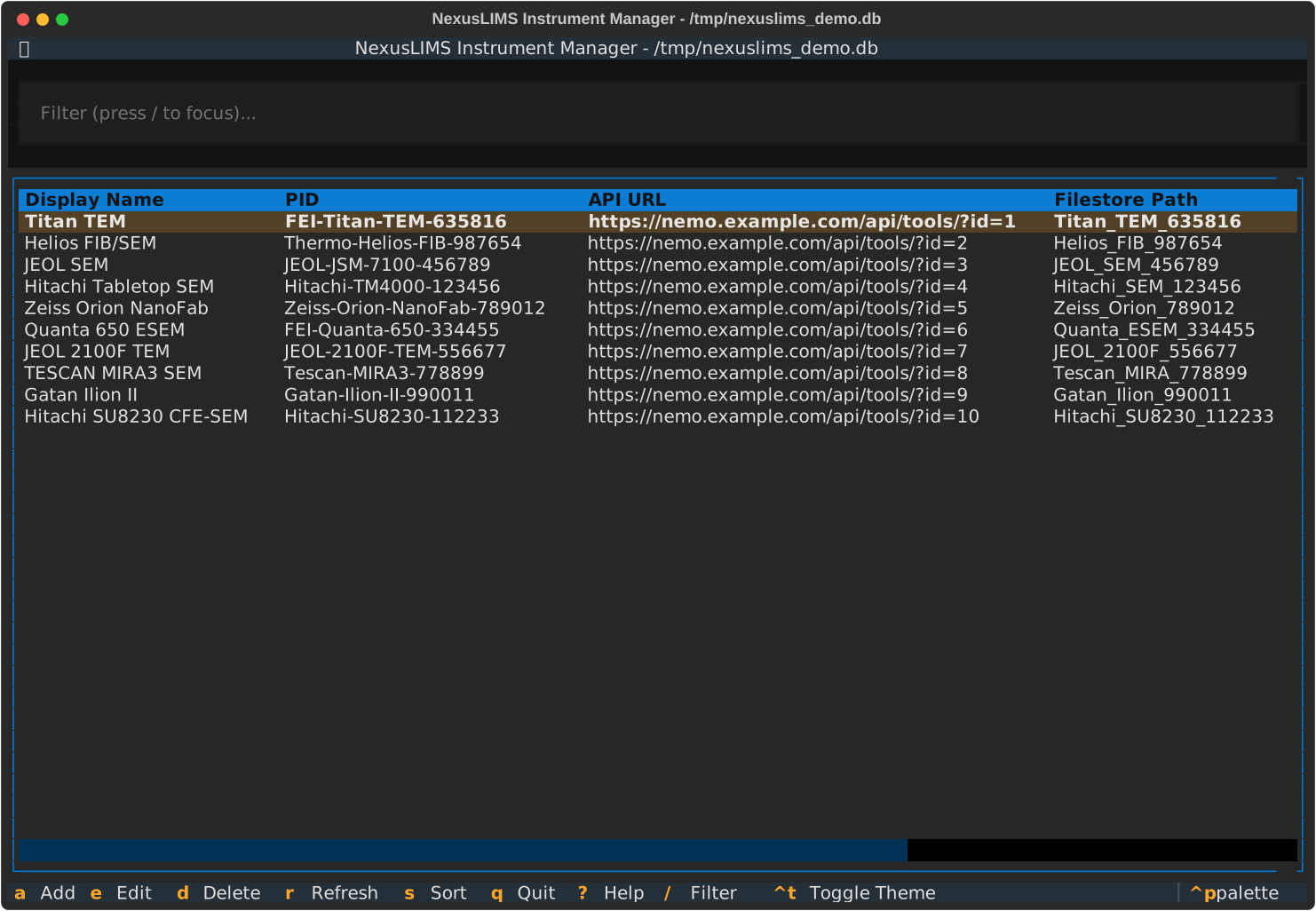
The main interface includes (from top down):
Filter input: Search/filter instruments by any field
Instrument table: Sortable columns showing key instrument details
Status bar: Shows available keyboard shortcuts
Sorting#
Click on any column header to sort by that column. Click again to reverse the sort order. You can also press the s key to sort with the keyboard.
Filtering#
Press / to focus the filter input, then type to search across all fields:
The filter searches across all instrument fields (PID, location, display name, etc.).
Adding Instruments#
Press a to open the add instrument form:
The form includes:
Instrument PID: Unique identifier (e.g., “FEI-Titan-TEM-635816”)
API URL: NEMO tool API endpoint
Calendar URL: Web-accessible calendar URL
Display Name: Human-readable name for records
Location: Physical location (building and room)
Property Tag: Unique reference number
Filestore Path: Relative path under
NX_INSTRUMENT_DATA_PATHHarvester: Calendar harvester integration (only “nemo” allowed)
Timezone: IANA timezone string (e.g., “US/Eastern”)
Form Validation#
The form validates:
Required fields: All fields must be filled
Unique constraints: PID and API URL must be unique
URL format: API and calendar URLs must be valid
Timezone: Must be a valid IANA timezone string
Invalid fields are highlighted in red with error messages.
Keybindings#
Tab / Shift+Tab: Navigate between fields
Ctrl+S: Save instrument
Escape or Cancel button: Cancel without saving
Editing Instruments#
Select an instrument and press e to edit:
The edit form is identical to the add form, but pre-filled with the instrument’s current values.
Deleting Instruments#
Select an instrument and press d to delete:
A confirmation dialog will appear before deletion. This action cannot be undone.
Warning: Deleting an instrument does not delete its associated session logs. Use with caution.
Theme Switching#
Press Ctrl+T to toggle between dark and light themes:
Help Screen#
Press ? to view the built-in help screen:
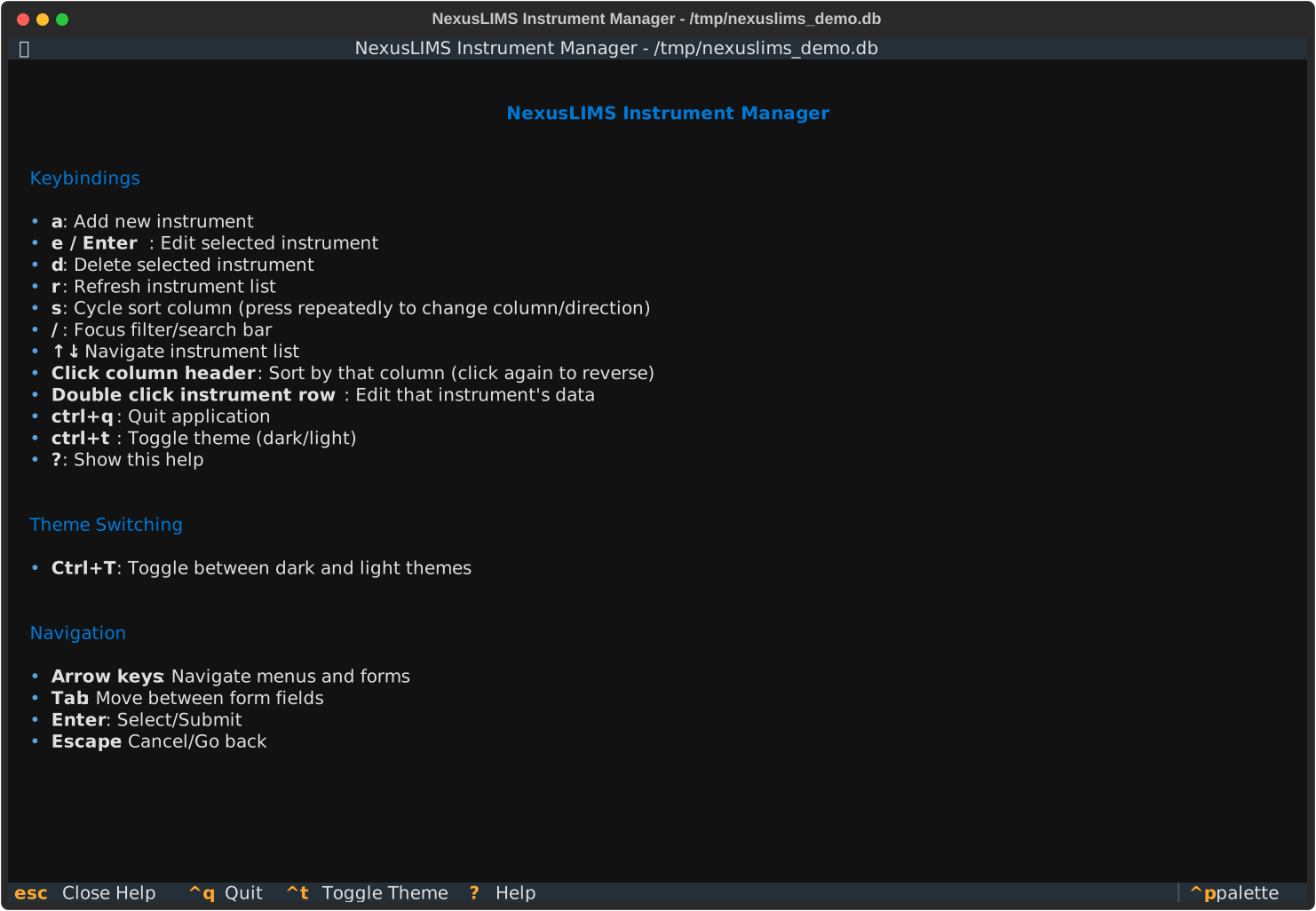
The help screen shows all available keybindings and actions.
Keybindings Reference#
Key |
Action |
|---|---|
Navigation |
|
↑/↓ |
Move selection up/down in table |
Enter |
Edit selected instrument |
Tab |
Switch between table and filter |
/ |
Focus filter input for search |
Actions |
|
a |
Add new instrument |
e |
Edit selected instrument |
d |
Delete selected instrument |
r |
Refresh instrument list |
? |
Show help screen |
Global |
|
Ctrl+T |
Toggle theme (dark/light) |
Ctrl+Q |
Quit application |
q |
Quit application |
Escape |
Close dialog or cancel action |
Command-Line Options#
# Show version information
nexuslims instruments manage --version

# Show help
nexuslims instruments manage --help
The application will use the database configured in your .env file.
To run with a different database, you can override NX_DB_PATH when starting
the application:
NX_DB_PATH=/path/to/different/db.sqlite nexuslims instruments manage
Database Initialization#
If the database doesn’t exist when you launch the TUI, it will be automatically initialized:
Creates the database file at
NX_DB_PATHRuns Alembic migrations to create the schema
Displays the current schema version
You can also initialize the database manually using the migration CLI:
nexuslims db init
See the Database Migrations guide for more details on database migrations.
Troubleshooting#
Database Connection Errors#
If you see database connection errors:
Verify
NX_DB_PATHenvironment variable is setEnsure the database file exists and is readable
Check that migrations are up to date:
nexuslims db current
Validation Errors#
If form validation fails:
Check error messages at the bottom of the form
Ensure unique fields (PID, API URL) don’t conflict with existing instruments
Verify timezone strings match IANA timezone database (e.g., “America/New_York”, not “EST”)
Confirm URLs are properly formatted with scheme (https://)
See Also#
Command-Line Interface Reference - Full CLI command reference (includes
nexuslims instruments list)Database Migrations - Database schema management
NexusLIMS Database - Database schema documentation