

Command-Line Interface Reference#
NexusLIMS provides a unified nexuslims command with subcommands for record
processing, configuration management, database migrations, and instrument
management. In all the examples below, if you are running NexusLIMS from a
git-cloned version of the repository, ensure you add uv run before every
command.
Every command (and any subcommands) also support the --help flag that can be
used to get interactive assistance for any operation.
Shell Completion#
NexusLIMS supports tab completion for subcommands, sub-subcommands, and option
flags in bash, zsh, and fish. Run nexuslims completion to get the setup
line for your current shell:
nexuslims completion
Or specify a shell explicitly:
nexuslims completion --shell zsh
nexuslims completion --shell bash
nexuslims completion --shell fish
Add the printed line to your shell’s rc file and restart your shell (or
source the rc file). For example, for zsh:
# ~/.zshrc
eval "$(_NEXUSLIMS_COMPLETE=zsh_source nexuslims)"
For bash:
# ~/.bashrc
eval "$(_NEXUSLIMS_COMPLETE=bash_source nexuslims)"
For fish:
# ~/.config/fish/config.fish
_NEXUSLIMS_COMPLETE=fish_source nexuslims | source
Once enabled, pressing Tab after any partial command or -- completes
subcommands, flags, and click.Path arguments:
$ nexuslims <Tab>
build-records  completion  config  db  extract  instruments

$ nexuslims build-records --<Tab>
--dry-run  --from  --help  --to  --verbose  --version

$ nexuslims config <Tab>
dump  edit  load
Note
Completion only works when nexuslims is on your PATH — i.e. when your
virtual environment is activated, or when the package is installed globally
with uv tool install nexuslims. It does not work when invoked via
uv run nexuslims.
Top-Level Usage#
nexuslims --help
Usage: nexuslims [OPTIONS] COMMAND [ARGS]...

  NexusLIMS command-line interface.

  Manage records, configuration, database migrations, and instruments.

Options:
  --version  Show the version and exit.
  --help     Show this message and exit.

Commands:
  build-records  Process new NexusLIMS records with logging and email...
  completion     Print shell completion setup instructions.
  config         Manage NexusLIMS configuration files.
  db             Manage NexusLIMS database.
  extract        Extract metadata and/or generate a preview for a single file.
  instruments    Manage NexusLIMS instruments.
  support-bundle Create a local diagnostic archive for Datasophos support.
nexuslims support-bundle#
Create a local diagnostic zip archive that can be reviewed and sent to Datasophos support when a NexusLIMS deployment is misbehaving. The command does not upload or submit the archive.
Basic Usage#
nexuslims support-bundle
nexuslims support-bundle --output report.zip
nexuslims support-bundle --log-days 14
nexuslims support-bundle --max-log-files 25
nexuslims support-bundle --log /path/to/specific.log
nexuslims support-bundle --no-default-logs
nexuslims support-bundle --include-all-logs
By default, the command creates
nexuslims-support-bundle-YYYYMMDD-HHMMSS.zip in the current directory.
After the bundle is created, the command prints the archive path, any diagnostic sections that could not be included, a reminder to review the archive for sensitive content, and the next step for sending it to support.
The archive includes:
summary.html: a styled human-readable overview of failed preflight checks, unhealthy paths, problematic recent sessions, database row counts, log warning and error counts, diagnostic-section errors, and included artifacts.manifest.json: a machine-readable artifact index with command options and artifact metadata.config.redacted.json: effective NexusLIMS configuration with secrets redacted.paths.json: configured and effective path health. IfNX_LOG_PATHorNX_RECORDS_PATHare unset, the bundle records their effective defaults underNX_DATA_PATH/logsandNX_DATA_PATH/records; missing default directories are not treated as unhealthy when the parentNX_DATA_PATHis writable.preflight.jsonandpreflight.txt: structured and text preflight results.environment.jsonandpackages.txt: runtime and package details.extractors.jsonandexporters.json: plugin and export diagnostics.Database summaries and CSV exports, including
session_logand optional tables such asupload_logandexternal_user_identifierswhen present.Selected redacted logs and
log_summary.json.
The bundle intentionally does not include raw microscope data, generated XML
records, the raw .env file, certificate bundle contents, arbitrary recursive
directory listings, or a copied SQLite database. Configuration secrets and
obvious credentials in copied logs are redacted on a best-effort basis, but you
should review the archive before sending it for any sensitive content.
nexuslims build-records#
The main record processing command that searches for completed sessions, builds XML records, and uploads them to configured export destinations.
Basic Usage#
nexuslims build-records --help
Usage: nexuslims build-records [OPTIONS]

  Process new NexusLIMS records with logging and email notifications.

  This command runs the NexusLIMS record builder to process new experimental
  sessions and generate XML records. It provides file locking to prevent
  concurrent runs, timestamped logging, and email notifications on errors.

  By default, only sessions from the last week are processed. Use --from=none
  to process all sessions, or specify custom date ranges with --from and --to.

Options:
  -n, --dry-run  Dry run: find files without building records
  -v, --verbose  Increase verbosity (-v for INFO, -vv for DEBUG)
  --from TEXT    Start date for session filtering (ISO format: YYYY-MM-DD).
                 Defaults to 1 week ago. Use "none" to disable lower bound.
  --to TEXT      End date for session filtering (ISO format: YYYY-MM-DD). Omit
                 to disable upper bound.
  --version      Show the version and exit.
  --help         Show this message and exit.

  Examples:

      # Normal run (process records from last week)
      $ nexuslims build-records

      # Process all sessions (no date filtering)
      $ nexuslims build-records --from=none

      # Process sessions since a specific date
      $ nexuslims build-records --from=2025-01-01

      # Process a specific date range
      $ nexuslims build-records --from=2025-01-01 --to=2025-01-31

      # Dry run (find files only)
      $ nexuslims build-records -n

      # Verbose output
      $ nexuslims build-records -vv
Options#
-n, --dry-run#
Run in dry-run mode to preview which sessions would be processed without actually building or uploading records.
When enabled:
Sessions are identified and logged
No XML records are generated
No uploads are performed
Database is not modified
Example:
nexuslims build-records --dry-run
--from DATE#
Filter sessions to only process those that started on or after the specified date.
Default: If not specified, defaults to 1 week ago from the current date/time.
Date format: YYYY-MM-DD (ISO 8601 date format)
Special values:
none- Disable the lower bound and process all sessions regardless of start date
Examples:
# Process sessions from January 1, 2024 onward
nexuslims build-records --from 2024-01-01

# Process sessions from a specific date to present
nexuslims build-records --from 2024-06-15

# Process all sessions regardless of date (disable default 1-week filter)
nexuslims build-records --from none
Note: Times are interpreted in the system timezone (where nexuslims build-records is running).
The start of day (00:00:00) is used for the from date.
--to DATE#
Filter sessions to only process those that ended on or before the specified date.
Date format: YYYY-MM-DD (ISO 8601 date format)
Examples:
# Process sessions up to and including December 31, 2023
nexuslims build-records --to 2023-12-31

# Process sessions from the past up to a specific date
nexuslims build-records --to 2024-01-15
Note: Times are interpreted in the system timezone (where nexuslims build-records is running).
The end of day (23:59:59) is used for the to date to include all sessions that ended on
that day.
Combining --from and --to#
Use both options together to process sessions within a specific date range.
Examples:
# Process sessions from January 2024 only
nexuslims build-records --from 2024-01-01 --to 2024-01-31

# Process sessions from a specific week
nexuslims build-records --from 2024-02-05 --to 2024-02-11

# Dry-run for a specific month
nexuslims build-records -n --from 2024-03-01 --to 2024-03-31
Date range interpretation:
Sessions are included if their start time is >=
--fromdate at 00:00:00Sessions are included if their end time is <=
--todate at 23:59:59Both bounds are inclusive
-v, --verbose#
Increase logging verbosity. Can be specified multiple times for more detail.
Verbosity levels:
No
-v: WARNING level (default)-v: INFO level (normal operation details, prints configuration)-vv: DEBUG level (detailed debugging information, prints configuration)
Note: When -v or -vv is specified, a sanitized version of the
current configuration settings are printed at startup for transparency
and debugging.
Examples:
# Normal verbosity
nexuslims build-records -v

# Maximum verbosity for debugging
nexuslims build-records -vv
--version#
Display the NexusLIMS version and exit.
Example:
nexuslims build-records --version
# Output: nexuslims build-records (NexusLIMS 2.4.1, released 2025-02-06)
--help#
Display help message with all available options and exit.
Example:
nexuslims build-records --help
Exit Codes#
0: Success (records processed, no sessions found, or another instance is already running)
1: Error occurred during processing (e.g., file logging setup failure)
Logging#
The command creates timestamped log files in the configured log directory
(NX_LOG_PATH or {NX_DATA_PATH}/logs/ by default
if that config variable is not set):
logs/
└── YYYY/
    └── MM/
        └── DD/
            └── process_records_HH-MM-SS.log
Logs include:
Session discovery and filtering details
Metadata extraction progress
Upload results
Error messages and tracebacks
Examples#
Process Recent Sessions (Default Behavior)#
nexuslims build-records -v
This is the typical usage when run via cron/systemd. By default,
it processes pulls usage events from NEMO in the last week with,
and then builds records for any with TO_BE_BUILT status and
uploads completed records.
Process All Pending Sessions#
To process all sessions regardless of date:
nexuslims build-records --from none -v
This disables the default 1-week filter and fetches all usage events from the NEMO API. Note, this may cause excessive runtimes for the record builder.
Preview Weekly Processing#
Check what would be processed for a specific week without making changes:
nexuslims build-records -n --from 2024-02-05 --to 2024-02-11 -vv
This dry-run with verbose output shows:
Which sessions match the date criteria
What files would be included
Whether reservations are found
Any errors that would occur
Automated Scheduled Execution#
Typical cron configuration for hourly processing:
# Process new microscopy records every hour
0 * * * * /path/to/nexuslims build-records -v >> /var/log/nexuslims-cron.log 2>&1
Or systemd timer (recommended):
# /etc/systemd/system/nexuslims-build-records.timer
[Unit]
Description=NexusLIMS record processing timer

[Timer]
OnCalendar=hourly
Persistent=true

[Install]
WantedBy=timers.target
# /etc/systemd/system/nexuslims-build-records.service
[Unit]
Description=NexusLIMS record processing

[Service]
Type=oneshot
ExecStart=/path/to/nexuslims build-records -v
User=nexuslims
Group=nexuslims
File Locking#
The command uses file locking to prevent concurrent execution. If another instance is running, the command exits with code 0 and skips that run.
Lock file location: {NX_DATA_PATH}/.builder.lock
Force unlock (if process crashed):
rm /path/to/nexuslims/data/.builder.lock
Email Notifications#
If email is configured (see configuration guide), error notifications are sent when:
Record building fails (session marked ERROR)
Uploads fail
Unexpected exceptions occur
See the configuration guide Email Notifications section for setup details.
nexuslims extract#
Extract metadata and/or generate a preview thumbnail for a single microscopy file. Useful for inspecting what NexusLIMS sees in a file without running the full record-building pipeline.
Basic Usage#
nexuslims extract --help
Usage: nexuslims extract [OPTIONS] FILE

  Extract metadata and/or generate a preview for a single FILE.

  Metadata is printed to stdout as JSON by default. Use --write to also
  persist it to the NexusLIMS data directory.

  Examples:
      nexuslims extract image.dm4
      nexuslims extract --no-preview spectrum.msa
      nexuslims extract --no-metadata --preview-path /tmp/thumb.png image.tif
      nexuslims extract --write --overwrite image.dm4

Options:
  --no-preview           Skip preview image generation.
  --no-metadata          Skip metadata extraction (only generate preview).
  -p, --preview-path PATH  Path to write the preview image. If omitted, the
                           preview is written alongside the input file as
                           '<filename>.thumb.png'.
  -w, --write            Write metadata JSON alongside the input file as
                         '<filename>.json'. If the file is under
                         NX_INSTRUMENT_DATA_PATH, the JSON is written to the
                         corresponding location under NX_DATA_PATH instead.
                         By default, metadata is only printed to stdout.
  --overwrite            Overwrite existing metadata JSON and preview files.
  -v, --verbose          Enable verbose logging output.
  --help                 Show this message and exit.
Options#
FILE (required argument)#
Path to the microscopy file to extract. The file must exist.
--no-preview#
Skip thumbnail generation. Only metadata extraction is performed and the JSON is printed to stdout.
Example:
nexuslims extract --no-preview /data/spectrum.msa
--no-metadata#
Skip metadata extraction. Only the preview image is generated. Cannot be used
together with --no-preview.
Example:
nexuslims extract --no-metadata /data/image.dm4
-p, --preview-path PATH#
Write the preview image to the given path instead of the default location. The
parent directory is created automatically. If omitted, the preview is written
alongside the input file as <filename>.thumb.png.
Example:
nexuslims extract -p /tmp/thumb.png /data/image.dm4
-w, --write#
Persist the extracted metadata JSON to disk. By default, metadata is only printed to stdout. The output location depends on the file’s path:
If the file is outside
NX_INSTRUMENT_DATA_PATH(typical for ad-hoc use), the JSON is written alongside the input file as<filename>.json.If the file is under
NX_INSTRUMENT_DATA_PATH, the JSON is written to the corresponding mirror path underNX_DATA_PATH(the same behavior as the full record-building pipeline).
Example:
nexuslims extract --write /data/image.dm4
--overwrite#
Allow overwriting an existing metadata JSON or preview file. By default, the command skips writing if the output file already exists.
Example:
nexuslims extract --write --overwrite /data/image.dm4
-v, --verbose#
Enable DEBUG-level logging. By default only WARNING and above are shown.
Example:
nexuslims extract -v /data/image.dm4
Exit Codes#
0: Success
1: No extractor found for the given file format, or both
--no-metadataand--no-previewwere specified together
Examples#
Inspect metadata for a DM4 file#
nexuslims extract /data/sample.dm4
Prints the full extracted metadata as pretty-printed JSON to stdout.
Inspect metadata without generating a preview#
nexuslims extract --no-preview /data/sample.dm4
Generate a preview thumbnail at a specific path#
nexuslims extract --no-metadata --preview-path /tmp/thumb.png /data/sample.dm4
Extract and persist both metadata and preview#
nexuslims extract --write /data/sample.dm4
Writes the JSON sidecar alongside the input file (as sample.dm4.json) and
prints the metadata to stdout. If sample.dm4 is under NX_INSTRUMENT_DATA_PATH,
the JSON is instead written to the corresponding path under NX_DATA_PATH.
Re-extract and overwrite existing outputs#
nexuslims extract --write --overwrite /data/sample.dm4
Pipe metadata into jq for filtering#
nexuslims extract /data/sample.dm4 | jq '.nx_meta.DatasetType'
nexuslims instruments manage#
Terminal user interface (TUI) for managing the NexusLIMS instruments database.
Provides an interactive interface for adding, editing, and deleting instruments without manual SQL manipulation. Features include sortable tables, real-time validation, search/filter, theme switching, and automatic database initialization.
Basic Usage#
nexuslims instruments manage --help
Usage: nexuslims instruments manage [OPTIONS]

  Launch the interactive instrument management TUI.

  Opens a terminal UI for adding, editing, and deleting instruments in the
  NexusLIMS database.

Options:
  --version  Show the version and exit.
  --help     Show this message and exit.
Features#
Interactive table: Sortable instrument list with real-time filtering
Add instruments: Form validation ensures data integrity
Edit instruments: Modify existing instruments with pre-filled forms
Delete instruments: Confirmation prompts prevent accidental deletion
Search/filter: Find instruments by any field
Theme switching: Toggle between dark and light modes
Auto-init: Automatically creates database if it doesn’t exist
Help screen: Built-in keybinding reference
Keybindings#
See the Instrument Management guide for detailed keybindings and usage examples.
Quick reference:
a: Add new instrument
e: Edit selected instrument
d: Delete selected instrument
/: Focus search/filter input
Ctrl+T: Toggle theme
?: Show help
q: Quit
Examples#
# Launch the instrument manager TUI
nexuslims instruments manage

# Show version
nexuslims instruments manage --version
For a complete guide with screenshots and demonstrations, see the Instrument Management user guide.
nexuslims instruments list#
Print a summary of all instruments in the database without launching the full TUI. Useful for quick status checks and scripting.
Basic Usage#
nexuslims instruments list --help
Usage: nexuslims instruments list [OPTIONS]

  List all instruments in the database.

Options:
  -f, --format [table|json]  Output format.  [default: table]
  --help                     Show this message and exit.
Output Formats#
Table (default)#
nexuslims instruments list
                    NexusLIMS Instruments (2 total)
┏━━━━━━━━━━━━━━━━━━┳━━━━━━━━━━━━━━━━━━┳━━━━━━━━━━┳━━━━━━━━━━━━━━━━━━━━━━┳━━━━━━━━━━┳━━━━━━━━━━━━━━━━━━━━━━┓
┃ ID               ┃ Display Name     ┃ Location ┃ API URL              ┃ Sessions ┃ Last Session         ┃
┡━━━━━━━━━━━━━━━━━━╇━━━━━━━━━━━━━━━━━━╇━━━━━━━━━━╇━━━━━━━━━━━━━━━━━━━━━━╇━━━━━━━━━━╇━━━━━━━━━━━━━━━━━━━━━━┩
│ FEI-Titan-TEM-01 │ FEI Titan TEM    │ Room 123 │ https://ne…?id=1     │       15 │ 2025-11-03 14:22 EST │
│ JEOL-ARM-200F-67 │ JEOL ARM 200F    │ Room 456 │ https://ne…?id=42    │        8 │ 2025-09-15 09:05 EDT │
└──────────────────┴──────────────────┴──────────┴──────────────────────┴──────────┴──────────────────────┘
Columns:
ID — the
instrument_pid(primary key in the database)Display Name — human-readable name shown in NexusLIMS records
Location — physical location (building and room)
API URL — NEMO tool API endpoint (long URLs are middle-truncated so both the server host and the query parameters remain visible)
Sessions — number of distinct sessions recorded for this instrument (based on
ENDevents insession_log)Last Session — timestamp of the most recent session end, localized to the instrument’s configured timezone;
—if no sessions exist yet
JSON (--format json)#
nexuslims instruments list --format json
[
  {
    "instrument_pid": "FEI-Titan-TEM-01",
    "display_name": "FEI Titan TEM",
    "location": "Room 123",
    "api_url": "https://nemo.example.com/api/tools/?id=1",
    "harvester": "nemo",
    "sessions_total": 15,
    "last_session": "2025-11-03T14:22:00-05:00"
  }
]
The last_session field is an ISO-8601 string with timezone offset, localized
to each instrument’s configured timezone, or null if no sessions exist.
Examples#
# Print table to terminal
nexuslims instruments list

# Pipe JSON to jq for scripting
nexuslims instruments list --format json | jq '.[].instrument_pid'

# Count total instruments
nexuslims instruments list --format json | jq 'length'

# Find instruments with no sessions yet
nexuslims instruments list --format json | jq '[.[] | select(.sessions_total == 0)]'
Note
nexuslims instruments list is a read-only command — it never modifies the
database. To add, edit, or delete instruments, use
nexuslims instruments manage.
nexuslims config#
Configuration management utility for viewing and exporting NexusLIMS configuration.
See the nexusLIMS.cli.config module documentation for details.
Basic Usage#
nexuslims config --help
Usage: nexuslims config [OPTIONS] COMMAND [ARGS]...

  Manage NexusLIMS configuration files.

Options:
  --version  Show the version and exit.
  --help     Show this message and exit.

Commands:
  dump  Dump the current effective configuration to JSON.
  edit  Interactively edit the NexusLIMS configuration in a terminal UI.
  load  Load a previously dumped JSON config into a .env file.
# View current configuration (prints to stdout)
nexuslims config dump

# Save configuration to a JSON file
nexuslims config dump --output nexuslims_config.json

# Load configuration from JSON file (if .env already exists,
# this command will detect it and create a backup of the current file)
nexuslims config load nexuslims_config.json
Note: The dump command prints to stdout by default. Use --output to write to a file instead.
Example output of the dump command:
{
  "NX_FILE_STRATEGY": "exclusive",
  "NX_IGNORE_PATTERNS": [
    "*.mib",
    "*.db",
    "*.emi"
  ],
  "NX_INSTRUMENT_DATA_PATH": "/tmp/nexuslims-test-instrument-data",
  "NX_DATA_PATH": "/tmp/nexuslims-test-data",
  "NX_DB_PATH": "/tmp/nexuslims-test-data/integration_test.db",
  "NX_CDCS_TOKEN": "nexuslims-dev-token-not-for-production",
  "NX_CDCS_URL": "http://cdcs.localhost:40080/",
  "NX_EXPORT_STRATEGY": "all",
  "NX_CERT_BUNDLE_FILE": null,
  "NX_CERT_BUNDLE": null,
  "NX_DISABLE_SSL_VERIFY": false,
  "NX_FILE_DELAY_DAYS": 2.0,
  "NX_CLUSTERING_SENSITIVITY": 1.0,
  "NX_LOG_PATH": null,
  "NX_RECORDS_PATH": null,
  "NX_LOCAL_PROFILES_PATH": null,
  "NX_ELABFTW_API_KEY": "1-aaaaaaaaaaaaaaaaaaaa",
  "NX_ELABFTW_URL": "https://elabftw.example.com/",
  "NX_ELABFTW_EXPERIMENT_CATEGORY": null,
  "NX_ELABFTW_EXPERIMENT_STATUS": null,
  "nemo_harvesters": {
    "1": {
      "address": "http://nemo.localhost:40080/api/",
      "token": "test-api-token_captain",
      "strftime_fmt": "%Y-%m-%dT%H:%M:%S%z",
      "strptime_fmt": "%Y-%m-%dT%H:%M:%S%z",
      "tz": null
    }
  },
  "email_config": {
    "smtp_host": "smtp.example.com",
    "smtp_port": 25,
    "smtp_username": "your-email@gmail.com",
    "smtp_password": "your-app-password",
    "use_tls": false,
    "sender": "nexuslims@yourdomain.com",
    "recipients": [
      "admin@yourdomain.com",
      "team@yourdomain.com"
    ]
  }
}
nexuslims db#
Added in version 2.5.0.
nexuslims db is the NexusLIMS database management tool. It
provides simple commands for common database operations while allowing
advanced access to Alembic functionality
for developers.
The migration command will automatically read the value of NX_DB_PATH
set in your .env file and apply any changes required to that database.
Backups of your database file will be made automatically during the upgrade
process.
Note
This command is generally only needed when upgrading NexusLIMS to new versions,
or when initially setting up a deployment of NexusLIMS. The release notes
for each NexusLIMS version will indicate if a database upgrade is necessary.
If so, you will need to run nexuslims db upgrade as part of the
version upgrade.
Database version naming: Database migration revision IDs track NexusLIMS
version numbers. For example, revision v2_4_0b corresponds to the database
schema required for NexusLIMS v2.4.0. This makes it easy to identify which
database version matches your installed NexusLIMS version.
Basic Usage#
nexuslims db --help
Usage: nexuslims db [OPTIONS] COMMAND [ARGS]...

  Manage NexusLIMS database.

  This tool provides simple commands for common database operations. For
  advanced usage, use 'nexuslims db alembic [COMMAND]' to access the full
  Alembic CLI.

Options:
  --version  Show version and exit
  --help     Show this message and exit.

Commands:
  alembic      Run Alembic commands directly (advanced usage).
  check        Check if the database has pending migrations.
  create-demo  Create a demo database pre-populated with sample instruments.
  current      Show the current database migration version.
  downgrade    Downgrade database to an earlier version.
  history      Show migration history.
  init         Initialize a new NexusLIMS database.
  upgrade      Upgrade database to a later version.
  view         Open a read-only TUI browser for the NexusLIMS database.
Commands#
init#
Initialize a new NexusLIMS database with.
Creates the database file at NX_DB_PATH, applies all migrations to create the schema,
and marks it as current.
Usage:
nexuslims db init [OPTIONS]
Options:
--force- Overwrite existing database file if it exists (use with caution)
Examples:
# Create new database
nexuslims db init

# Force recreate (destroys existing data)
nexuslims db init --force
Notes:
Database location is read from
NX_DB_PATHenvironment variableParent directories are created automatically if they don’t exist
Fails with clear error if database already exists (unless
--forceis used)
upgrade#
Upgrade an existing NexusLIMS database to a later schema version.
Usage:
nexuslims db upgrade [REVISION] [OPTIONS]
Arguments:
REVISION- Target migration version (default:headfor latest)head- Upgrade to latest version+1- Upgrade one versionabc- Upgrade to specific revision ID (e.g.,v2_4_0a)
Options:
--sql- Generate SQL script instead of applying changes
Examples:
# Upgrade to latest version
nexuslims db upgrade

# Upgrade one version at a time
nexuslims db upgrade +1

# Upgrade to specific revision
nexuslims db upgrade v2_4_0a

# Generate SQL without applying
nexuslims db upgrade --sql
downgrade#
Downgrade NexusLIMS database to an earlier schema version.
Usage:
nexuslims db downgrade [REVISION] [OPTIONS]
Arguments:
REVISION- Target migration version (default:-1for one step back)-1- Downgrade one version-2- Downgrade two versionsabc- Downgrade to specific revision ID (e.g.,002)
Options:
--sql- Generate SQL script instead of applying changes
Examples:
# Downgrade one version
nexuslims db downgrade

# Downgrade to specific revision
nexuslims db downgrade v1_4_3

# Generate SQL without applying
nexuslims db downgrade --sql
current#
Show the current database migration version.
Usage:
nexuslims db current [OPTIONS]
Options:
-v, --verbose- Show detailed information
Examples:
# Show current version
nexuslims db current

# output:
#   v2_4_0b (head)

# Show detailed information
nexuslims db current -v

# output:
#  Current revision(s) for sqlite:///test_db.sqlite:
#  Rev: v2_4_0b (head)
#  Parent: v2_4_0a
#  Path: nexusLIMS/db/migrations/versions/v2_4_0b_add_check_constraints.py
check#
Check if the database has any pending migrations.
Useful for automated monitoring or pre-deployment checks.
Usage:
nexuslims db check
Exit Codes:
0 - Database is up-to-date
1 - Database has pending migrations
2 - Error occurred
Examples:
# Check migration status
nexuslims db check

# output:
#   ⚠ Database has pending migrations
#   Current revision: v1_4_3
#   Latest revision:  v2_4_0b
history#
Show migration history.
Usage:
nexuslims db history [OPTIONS]
Options:
-v, --verbose- Show detailed information-i, --indicate-current- Indicate current revision (Alembic default)
Examples:
# Show migration history
nexuslims db history

# output:
#   v2_4_0a -> v2_4_0b (head), Add check constraints to session_log.
#   v1_4_3 -> v2_4_0a, Add upload_log table and BUILT_NOT_EXPORTED status.
#   <base> -> v1_4_3, Initial schema baseline.

# Show verbose history with current revision marked
nexuslims db history -v -i
view#
Open a read-only TUI browser for the NexusLIMS database.
Launches a Textual-based interactive browser pointed at the database configured
via NX_DB_PATH. The browser is read-only — no SQL execution or data
modification is possible.
Usage:
nexuslims db view
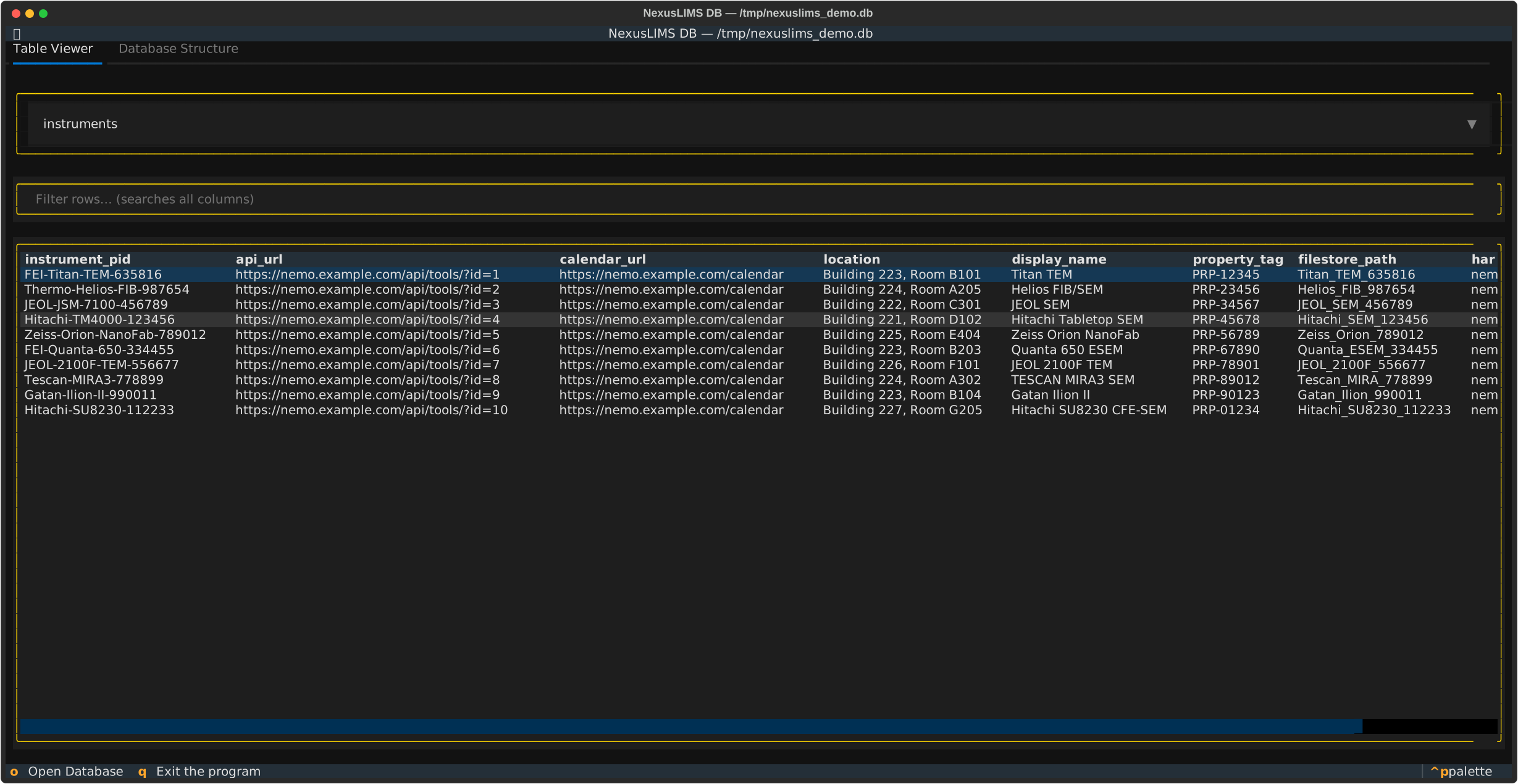
Tabs available inside the browser:
Table Viewer — Browse rows in any table with a live filter input and sortable column headers. Click any column header to sort ascending; click again to sort descending; click a third time to clear sorting. Type in the filter box to narrow results across all columns simultaneously (up to 1 000 rows shown at once).
Database Structure — Inspect the schema: tables, columns, types, and indexes.
Keybindings (inside the browser):
Key |
Action |
|---|---|
|
Navigate between panels |
|
Select / confirm |
|
Quit |
Prerequisites:
NX_DB_PATHmust be set (via.envor environment)The database file must already exist (run
nexuslims db initfirst)
Examples:
# Open the database browser
nexuslims db view
Error handling:
Exits with a clear error message if
NX_DB_PATHis not setExits with a clear error message if the database file does not exist
Note
nexuslims db view is a read-only command — it cannot modify the database.
To manage instruments, use nexuslims instruments manage. To explore a
pre-populated example database, create one first with nexuslims db create-demo.
create-demo#
Create a demo SQLite database pre-populated with 10 sample instruments.
Useful for exploring NexusLIMS without a live NEMO instance, testing the TUI, or generating documentation screenshots.
Usage:
nexuslims db create-demo [PATH] [OPTIONS]
Arguments:
PATH(optional) — destination file path for the demo database. Defaults tonexuslims_demo.dbin the current working directory.
Options:
--force— Overwrite the file if it already exists
Examples:
# Create demo database in the current directory (nexuslims_demo.db)
nexuslims db create-demo

# Create at a specific path
nexuslims db create-demo /tmp/demo.db

# Overwrite an existing file
nexuslims db create-demo ./my_demo.db --force
Typical workflow — browse the demo database:
# 1. Create a demo database
nexuslims db create-demo

# 2. Browse it in the TUI
NX_DB_PATH=./nexuslims_demo.db nexuslims db view

# 3. Or explore instruments in the instrument manager
NX_DB_PATH=./nexuslims_demo.db nexuslims instruments manage
Note
The demo database is a self-contained SQLite file that can be opened with any
SQLite client (e.g. DB Browser for SQLite or the
sqlite3 CLI). It is not connected to any NEMO instance and contains no real
session data.
alembic#
Run Alembic commands directly (advanced usage).
Provides access to the full Alembic CLI for advanced operations not covered by the simplified commands above.
Usage:
nexuslims db alembic [ALEMBIC_COMMAND] [ALEMBIC_OPTIONS]
Examples:
# Show detailed migration history
nexuslims db alembic history --verbose

# Create a new migration (development only, requires source checkout)
nexuslims db alembic revision --autogenerate -m "Add column"

# Show specific revision details
nexuslims db alembic show 003

# Stamp database without running migrations (use with caution)
nexuslims db alembic stamp head
Note: The alembic subcommand passes arguments directly to Alembic’s CLI. See the
Alembic documentation for available commands.
Global Options#
--version#
Display the NexusLIMS version and exit.
Example:
nexuslims db --version
# Output: nexuslims db (NexusLIMS 2.4.1)
Common Workflows#
Setting Up a New Installation#
# 1. Set database path in .env
echo "NX_DB_PATH=/var/nexuslims/database.db" >> .env

# 2. Initialize database
nexuslims db init

# 3. Verify database status
nexuslims db current
Upgrading After NexusLIMS Update#
# 1. Check for pending migrations
nexuslims db check

# 2. If migrations are pending, review what will change
nexuslims db history -v

# 3. Manually backup database (recommended, though the upgrade command will also backup)
cp /path/to/database.db /path/to/database.db.backup

# 4. Apply migrations
nexuslims db upgrade

# 5. Verify upgrade
nexuslims db current
Migrating from v1.x or Early v2.x#
If you have an existing database from before v2.2.0 (when Alembic was introduced), mark it as migrated to the baseline schema:
# Mark existing database as at the v1.4.3 migration level
nexuslims db alembic stamp v1_4_3
See the Migration Guide guide for complete migration instructions.
Configuration#
The nexuslims db command automatically:
Reads database path from NX_DB_PATH environment variable
Locates migrations directory inside the installed package (works with pip/uv installations)
Creates temporary Alembic configuration as needed
No manual configuration is required.
Notes#
Always backup your database before running migrations on production data
Test migrations in a development environment first
Never edit applied migrations - create a new migration to fix issues
The sequential revision IDs aligned to NexusLIMS versions (v1_4_3, v2_4_0, etc.) make it easy to track migration order
For more details on the migration system, see the database migration documentation.