

Configuration#
This guide provides comprehensive information about configuring NexusLIMS through environment variables. All configuration is managed through the centralized nexusLIMS.config module, which uses Pydantic Settings for validation and type safety.
Configuration Files#
NexusLIMS loads configuration from environment variables and optionally from a .env file in the same folder from which you run any NexusLIMS commands.
Configuration Management#
NexusLIMS provides both CLI tools and an interactive terminal UI to help you manage, debug, and migrate your configurations between environments.
Interactive Configuration Editor (TUI)#
The NexusLIMS Configuration Editor provides a user-friendly terminal interface for editing your .env file:
# Launch the interactive configurator
nexuslims config edit

# Edit a specific .env file
nexuslims config edit --env-path /path/to/.env
The configurator features:
Tabbed Interface: Organized into logical sections (Core Paths, CDCS, File Processing, etc.)
Pre-populated Fields: Loads existing
.envvalues automaticallyReal-time Validation: Catches errors before saving
Context-sensitive Help: Press F1 on any field for detailed documentation
Dynamic NEMO Management: Add/remove multiple NEMO harvester instances
Toggle Sections: Enable/disable optional features like eLabFTW and Email alerts
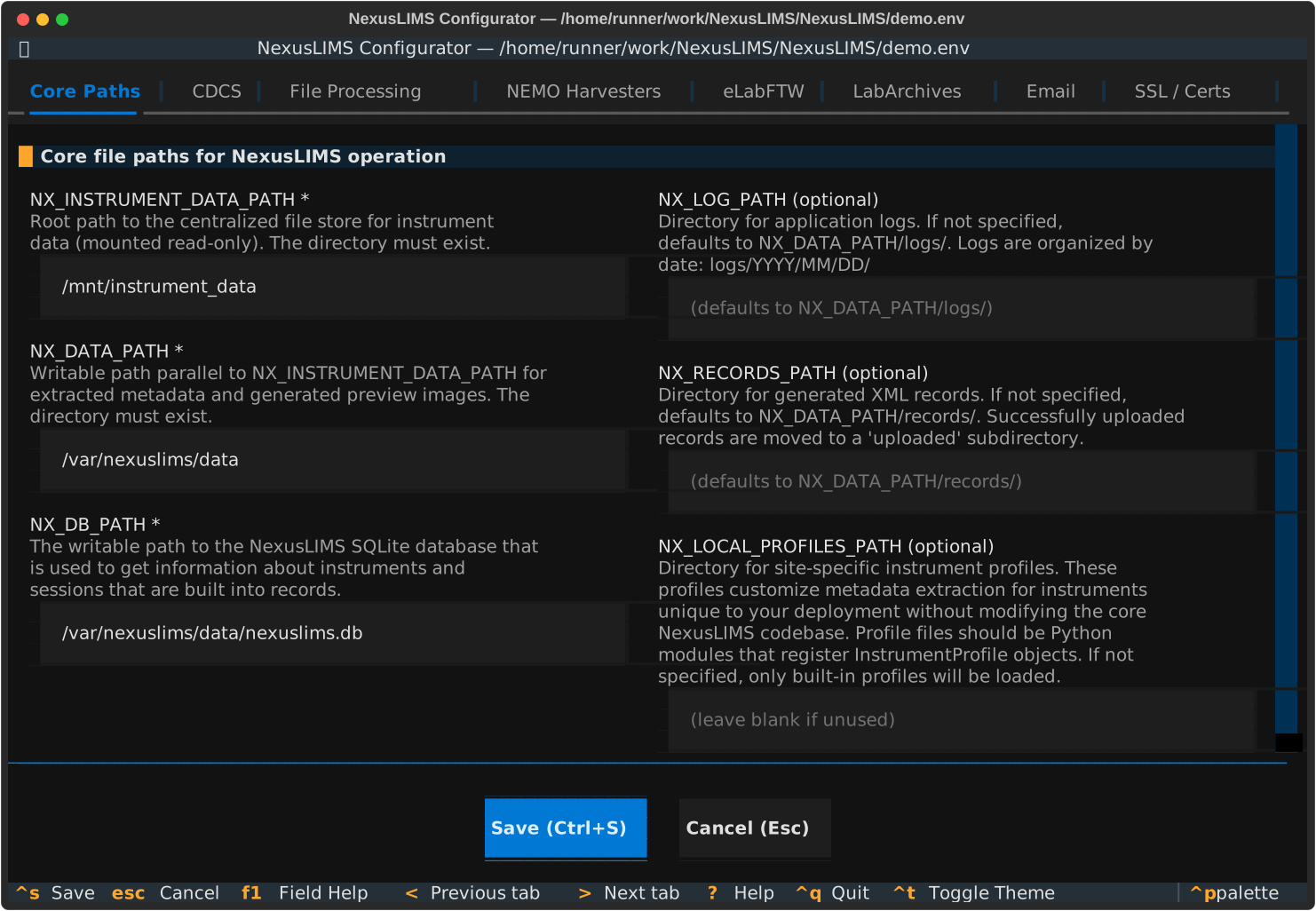
Main Screen of the configuration TUI#
Navigation:
Tab/Shift+Tab: Move between fields</>: Navigate between tabsF1: Show field-specific helpCtrl+S: Save configurationEscape: Cancel/Exit?: Show the overall help screen
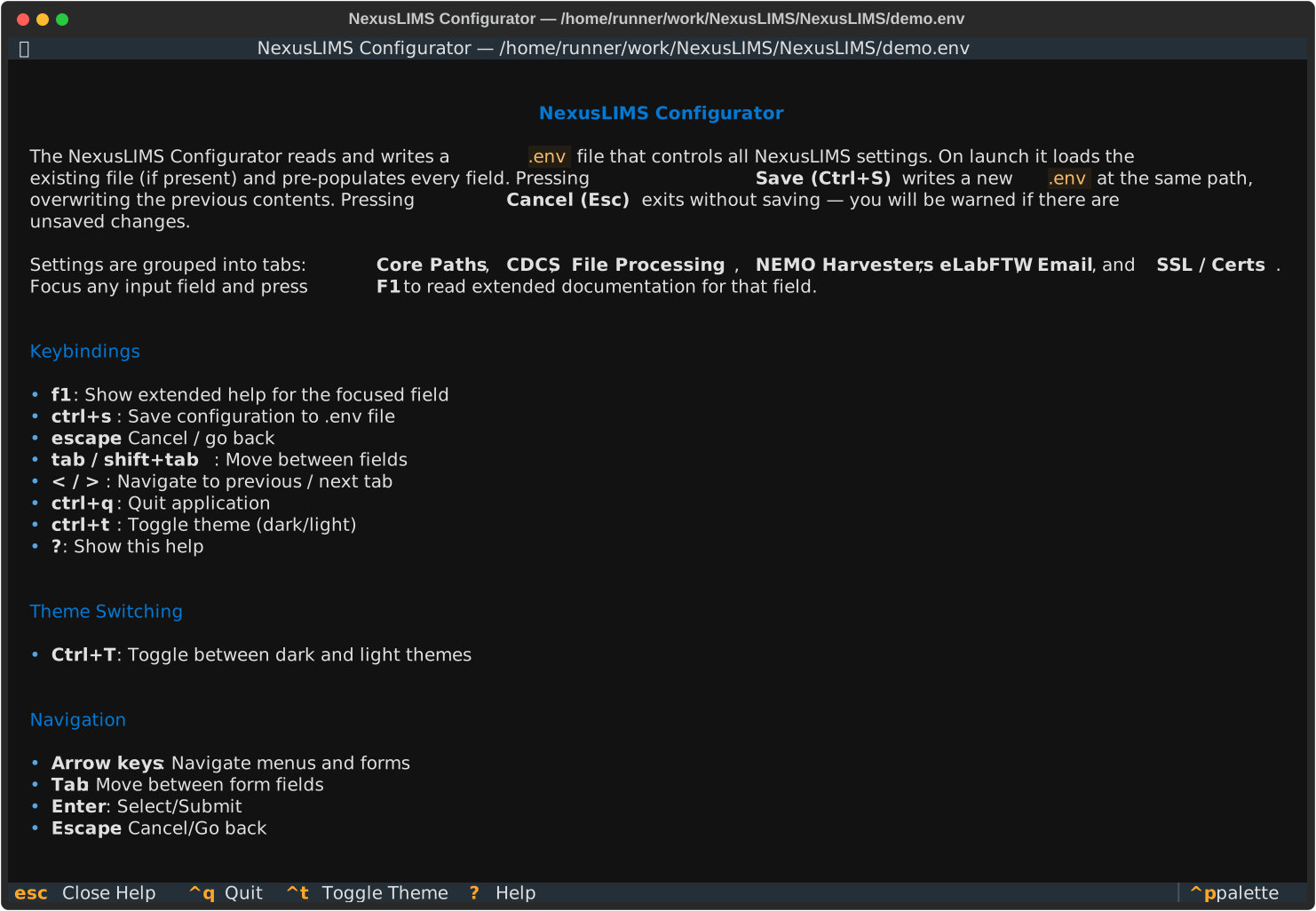
Configuration app general help screen (shown with ? key)#
Field Help: Press F1 while focused on any field to see extended documentation:
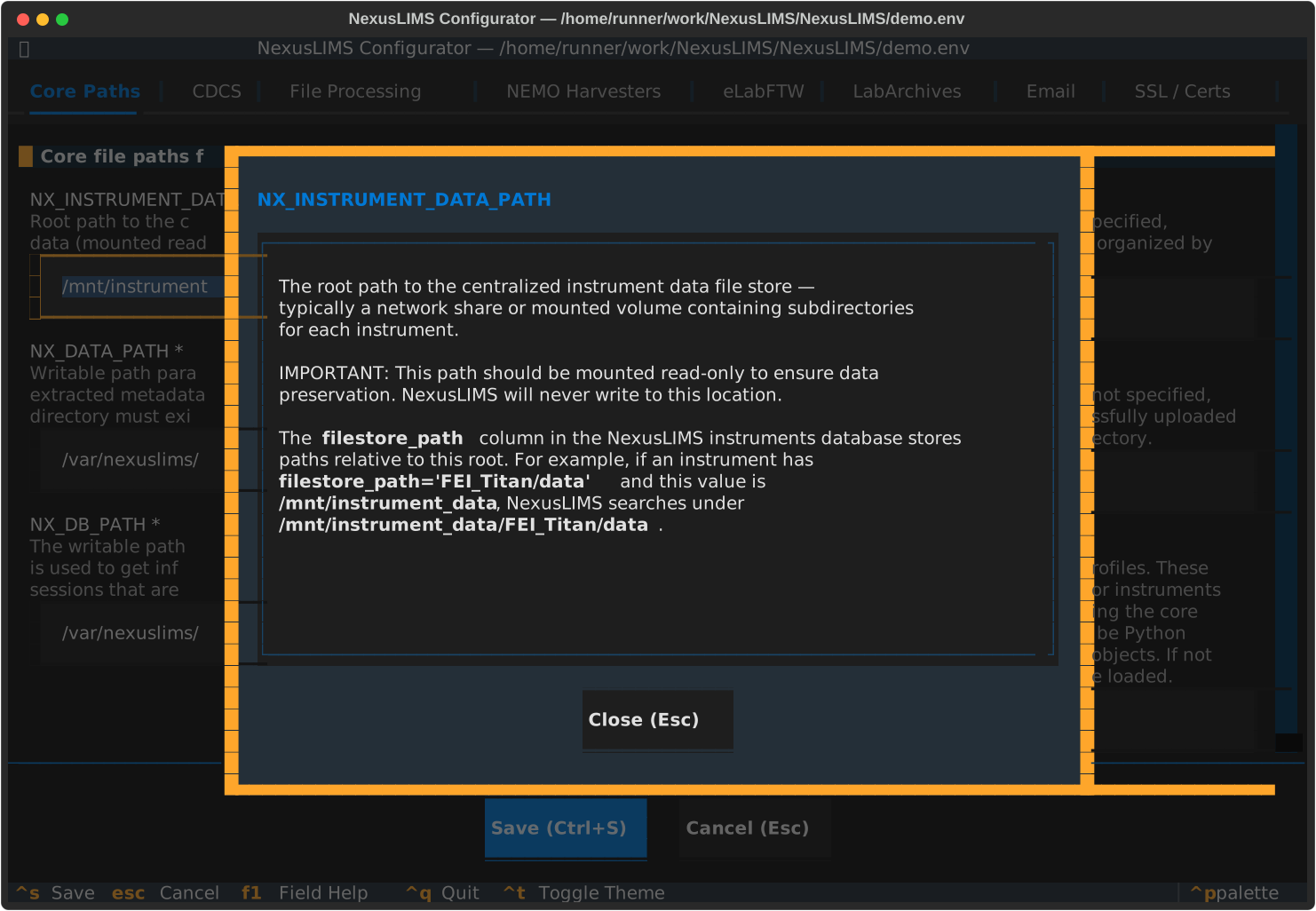
Showing the detailed help for a particular field (by pressing F1)#
Video Demonstrations#
This demo shows opening the configuration tool, browsing around the “tabs” that separate the logical grouping of config values, showing the help screen, and then exiting:
This video demonstrates using the F1 key to show detailed help for various configuration variables.
This capability can help you learn more about what each setting does and how to properly set the values:
F1 key to view detailed help for different fields
This video demonstrates adding a NEMO harvester configuration to the application. Since NexusLIMS supports multiple NEMO instances in one installation, the configuration tool allows you to add/delete harvesters and fill out each harvester’s configuration in a logical grouping:
Dumping Configuration#
Use nexuslims config dump to export your current configuration to a JSON file:
# Dump to default file (nexuslims_config.json)
nexuslims config dump

# Dump to specific file
nexuslims config dump --output /path/to/my-config.json
The dumped configuration includes:
All environment variables (from both environment and
.envfile)Parsed NEMO harvester configurations
Email configuration (if configured)
Computed defaults for optional settings
Danger
Security Warning: The dumped JSON file contains live credentials (API tokens, passwords, certificates). Handle it with the same care as your .env file. Never commit it to version control or share it publicly.
Example output:
{
  "NX_DATA_PATH": "/var/nexuslims/data",
  "NX_INSTRUMENT_DATA_PATH": "/mnt/nexus_instruments",
  "NX_DB_PATH": "/var/nexuslims/data/nexuslims.db",
  "NX_CDCS_URL": "https://nexuslims.example.com",
  "NX_CDCS_TOKEN": "live-secret-token-here",
  "nemo_harvesters": {
    "1": {
      "address": "https://nemo.example.com/api/",
      "token": "live-secret-token-here",
      "tz": null
    }
  },
  "email_config": {
    "smtp_host": "smtp.gmail.com",
    "smtp_port": 587,
    "smtp_password": "live-password-here",
    "sender": "nexuslims@example.com",
    "recipients": ["admin@example.com"]
  }
}
Use cases for config dumps:
Backup: Create a complete snapshot of a working configuration
Migration: Transfer configuration to a new server (see Loading Configuration below)
Comparison: Diff configs between environments to identify differences
Disaster recovery: Quick restoration of configuration after system failure
Loading Configuration#
Use nexuslims config load to convert a dumped JSON config back into a .env file:
# Load config (creates/overwrites .env in current directory)
nexuslims config load nexuslims_config.json

# Load to specific .env file
nexuslims config load nexuslims_config.json --env-path /path/to/.env

# Skip confirmation prompt (useful for automation)
nexuslims config load nexuslims_config.json --force
Safety features:
Backup: If
.envexists, it’s automatically backed up to.env.bak.YYYYMMDD-HHMMSSbefore overwritingConfirmation: Prompts for confirmation before overwriting (unless
--forceis used)Flattening: Structured config (nested harvesters, email config) is converted back to flat environment variables
Migration workflow example:
# On source server
nexuslims config dump --output production-config.json

# Securely transfer the file to new server (contains live credentials!)
scp production-config.json user@newserver:/path/to/

# On destination server
nexuslims config load production-config.json

# Clean up the dump file (it contains secrets)
rm production-config.json
Configuration in Logs#
When nexuslims build-records starts with a verbosity of -v or higher,
it logs a sanitized view of the loaded configuration to help with debugging.
The log output is sanitized, ensuring no sensitive environment variables
are exposed in logs.
Example log output:
INFO - Loaded configuration:
INFO - {
INFO -   "NX_DATA_PATH": "/var/nexuslims/data",
INFO -   "NX_CDCS_TOKEN": "***",
INFO -   "nemo_harvesters": {
INFO -     "1": {"address": "https://nemo.example.com/api/", "token": "***"}
INFO -   }
INFO - }
This is particularly useful when:
Troubleshooting why a specific setting isn’t taking effect
Verifying that
.envchanges were picked upConfirming which NEMO instances are configured
Checking computed defaults for optional settings
Required Configuration#
These variables must be configured for NexusLIMS to function.
File System Paths#
NX_INSTRUMENT_DATA_PATH#
Type: typing.Annotated[pathlib.Path, PathType(path_type=’dir’)]
Required: Yes
The root path to the centralized instrument data file store — typically a network share or mounted volume containing subdirectories for each instrument.
IMPORTANT: This path should be mounted read-only to ensure data preservation. NexusLIMS will never write to this location.
The filestore_path column in the NexusLIMS instruments database stores paths relative to this root. For example, if an instrument has filestore_path='FEI_Titan/data' and this value is /mnt/instrument_data, NexusLIMS searches under /mnt/instrument_data/FEI_Titan/data.
Example:
NX_INSTRUMENT_DATA_PATH=/mnt/nexus_instruments
NX_DATA_PATH#
Type: typing.Annotated[pathlib.Path, PathType(path_type=’dir’)]
Required: Yes
A writable path that mirrors the directory structure of NX_INSTRUMENT_DATA_PATH. NexusLIMS writes extracted metadata files and generated preview images here, alongside the original data.
This path must be accessible to the NexusLIMS CDCS frontend instance so it can serve preview images and metadata files to users browsing records. Configure your CDCS deployment to mount or serve files from this location.
Example:
NX_DATA_PATH=/var/nexuslims/data
NX_DB_PATH#
Type: typing.Annotated[pathlib.Path, PathType(path_type=’file’)]
Required: Yes
The full filesystem path to the NexusLIMS SQLite database file.
Must be writable by the NexusLIMS process. The database is created automatically on first run of nexuslims db init. Recommended location: within NX_DATA_PATH for co-location with other data.
Example:
NX_DB_PATH=/var/nexuslims/data/nexuslims.db
CDCS Integration#
NX_CDCS_URL#
Type: AnyHttpUrl
Required: Yes
The root URL of the NexusLIMS CDCS frontend instance. All record uploads are sent here using NX_CDCS_TOKEN.
Include the trailing slash: https://nexuslims.example.com/
This is the same URL users visit to browse experiment records. NexusLIMS POSTs new XML records to the CDCS REST API at this address.
Example:
NX_CDCS_URL=https://nexuslims.example.com
NX_CDCS_TOKEN#
Type: str
Required: Yes
The API authentication token for the NexusLIMS CDCS frontend. Used for all record upload requests.
To obtain: log in to your CDCS instance as an administrator, navigate to the admin panel, and find or create an API token for the NexusLIMS service account. Alternatively, use the CDCS REST API token endpoint.
Keep this value secret — anyone with this token can upload records to your CDCS instance.
Example:
NX_CDCS_TOKEN=your-api-token-here
NX_CDCS_USER_OWNED_RECORDS#
Type: bool
Default: false
When enabled, NexusLIMS will:
1. Fetch the session user’s details (username, email) from the NEMO reservation or usage event.
2. Search the CDCS user list for a matching account (by username first, then email).
3. If no account exists, create one with a random password — the account is intended for SSO/LDAP login only; the generated password is never shared.
4. Assign ownership of the uploaded record to that CDCS user.
Requirements: NX_CDCS_TOKEN must belong to a superuser account. If user lookup or creation fails for any reason, the record is still uploaded as admin-owned and a warning is logged — the export is never blocked by a user management failure.
Default: false (records are owned by the service account).
Example:
NX_CDCS_USER_OWNED_RECORDS=true
NX_CDCS_ASSIGN_TO_PUBLIC_WORKSPACE#
Type: bool
Default: true
Controls whether uploaded records are assigned to the CDCS global public workspace after upload.
When true (default), NexusLIMS calls rest/data/{id}/assign/{workspace_id}/ after each upload.
Set to false to leave records in the uploading user’s private workspace. This is only useful in combination with NX_CDCS_USER_OWNED_RECORDS=true; without user ownership enabled, disabling workspace assignment would make records inaccessible to most users.
Both this setting and NX_CDCS_USER_OWNED_RECORDS are applied independently — a record can be user-owned AND in the public workspace at the same time.
Example:
NX_CDCS_ASSIGN_TO_PUBLIC_WORKSPACE=true
Warning
Store API tokens securely. Use environment variables or a secure secrets management system rather than committing tokens to version control.
NEMO Integration#
NexusLIMS supports multiple NEMO instances by using numbered environment variable pairs. Each NEMO instance requires an address and token.
NX_NEMO_ADDRESS_N#
Type: AnyHttpUrl
Required: Yes
The full URL to the NEMO API root endpoint, including the trailing slash. For example: https://nemo.yourinstitution.edu/api/. This must point to the API root, not the NEMO web interface itself.
You can verify the address is correct by navigating to it in a browser — a valid NEMO API root returns a JSON object listing available endpoints.
Example:
NX_NEMO_ADDRESS_1=https://nemo1.example.com/api/
NX_NEMO_ADDRESS_2=https://nemo2.example.com/api/
NX_NEMO_TOKEN_N#
Type: str
Required: Yes
The API authentication token for this NEMO server instance. To obtain: log in to NEMO as an administrator, navigate to the ‘Detailed administration’ page (typically at /admin/authtoken/token/), and locate or create a token for the NexusLIMS service account. The token is a 40-character hex string.
Example:
NX_NEMO_TOKEN_1=abc123def456...
NX_NEMO_TOKEN_2=xyz789uvw012...
Optional Configuration#
eLabFTW Integration#
NexusLIMS can optionally export records to eLabFTW, an open-source electronic lab notebook. Each NexusLIMS session creates one eLabFTW experiment with a structured summary and the full XML record attached.
NX_ELABFTW_URL#
Type: AnyHttpUrl | None
Default: None
The root URL of your eLabFTW instance. If not configured, eLabFTW export will be disabled.
Should NOT include /api/ or any path — just the domain:
https://elabftw.example.com
http://localhost:3148
NexusLIMS appends the appropriate API paths automatically.
Example:
NX_ELABFTW_URL=https://elabftw.example.com
NX_ELABFTW_API_KEY#
Type: str | None
Default: None
API key for authenticating to the eLabFTW API. If not configured, eLabFTW export will be disabled.
To obtain: log in to your eLabFTW instance, go to user settings, and find the ‘API keys’ section. Create a new key for NexusLIMS.
Format: {id}-{key} (e.g., 1-abc123...). The key is typically a long alphanumeric string.
Example:
NX_ELABFTW_API_KEY=1-abcdef0123456789...
Note
eLabFTW API keys have the format {id}-{key} where the key portion is 84 hexadecimal characters.
NX_ELABFTW_EXPERIMENT_CATEGORY#
Type: int | None
Default: None
The default category ID for experiments created in eLabFTW. If not specified, eLabFTW uses its default category.
To find category IDs: log in to eLabFTW as an administrator, navigate to the admin panel, and look under ‘Experiment categories’. The ID is shown next to each category name.
Example:
NX_ELABFTW_EXPERIMENT_CATEGORY=1
NX_ELABFTW_EXPERIMENT_STATUS#
Type: int | None
Default: None
The default status ID for experiments created in eLabFTW. If not specified, eLabFTW uses its default status.
To find status IDs: log in to eLabFTW as an administrator, navigate to the admin panel, and look under ‘Experiment statuses’. The ID is shown next to each status name.
Example:
NX_ELABFTW_EXPERIMENT_STATUS=2
Tip
When eLabFTW export is enabled, experiments are created with:
Title: “NexusLIMS Experiment - {session_id}”
Body: HTML summary with session details and link to CDCS record (if available)
Tags: NexusLIMS, instrument name, username
Metadata: Structured extra_fields including session times, instrument, user, and CDCS cross-link
Attachment: Full XML record file
LabArchives Integration#
NexusLIMS can optionally export records to LabArchives, a commercial electronic lab notebook system. Each NexusLIMS session creates one notebook page with an HTML session summary and the full XML record attached as a file.
LabArchives authentication uses HMAC-SHA-512 signed requests. You need four credentials: an Access Key ID (provided by LabArchives), an Access Password (provided by LabArchives), a User ID (uid), and the instance URL (most likely can stay as the default unless you are in a different region).
NX_LABARCHIVES_URL#
Type: AnyHttpUrl | None
Default: 'https://api.labarchives.com/api'
The base URL for LabArchives API calls, including the /api path segment. For the standard cloud service this is https://api.labarchives.com/api. For self-hosted instances use https://your-instance.example.com/api.
All API requests are sent to {NX_LABARCHIVES_URL}/{class}/{method}, so the /api suffix must be included here.
Example:
NX_LABARCHIVES_URL=https://api.labarchives.com/api
NX_LABARCHIVES_ACCESS_KEY_ID#
Type: str | None
Default: None
The Access Key ID (akid) provided by LabArchives for your API integration. This is the public identifier used alongside NX_LABARCHIVES_ACCESS_PASSWORD to sign API requests with HMAC-SHA-512.
Obtain this from your LabArchives account under API settings. Both the Access Key ID and Access Password are required for LabArchives export to be enabled.
Example:
NX_LABARCHIVES_ACCESS_KEY_ID=your-access-key-id-here
NX_LABARCHIVES_ACCESS_PASSWORD#
Type: str | None
Default: None
The access password provided by LabArchives for your API integration. This secret is used to generate HMAC-SHA-512 signatures that authenticate all API requests.
Keep this value secret — it is equivalent to a password and allows full API access to the configured LabArchives account. Used together with NX_LABARCHIVES_ACCESS_KEY_ID.
Example:
NX_LABARCHIVES_ACCESS_PASSWORD=your-access-password-here
NX_LABARCHIVES_USER_ID#
Type: str | None
Default: None
The persistent user ID (uid) for the LabArchives account that will own uploaded notebook entries. This is obtained once via the LabArchives user_access_info API call.
To get the uid: call the LabArchives API endpoint users/user_access_info with your login and token. The returned uid value is what you need here.
This uid is stable and does not change, so you only need to retrieve it once.
Example:
NX_LABARCHIVES_USER_ID=your-uid-here
Note
To obtain your UID, use the nexuslims config labarchives-get-uid command, or use
the button on the LabArchives page of the nexuslims config edit application. You will need to sign in
manually via the LabArchives web interface and generate a fresh Password Token for
External Applications (valid for 1 hour only), which will be exchanged for your
stable UID. This only has to be done once, as the
returned uid value is stable and does not change over time.
NX_LABARCHIVES_NOTEBOOK_ID#
Type: str | None
Default: None
The notebook ID (nbid) of the target LabArchives notebook where NexusLIMS records will be stored. When configured, NexusLIMS automatically creates a NexusLIMS Records/{instrument}/ folder hierarchy within this notebook.
If not set, records are uploaded to the user’s default Inbox.
To find the nbid: open the notebook in LabArchives and check the URL — it typically appears as a parameter in the notebook URL.
Example:
NX_LABARCHIVES_NOTEBOOK_ID=12345 # optional
Tip
When LabArchives export is enabled, the following structure is created automatically:
Notebook: The notebook specified by
NX_LABARCHIVES_NOTEBOOK_ID(or Inbox if unset)Folder hierarchy:
NexusLIMS Records/{instrument_pid}/(created automatically if missing)Page:
{YYYY-MM-DD} — {session_id}(one page per session)Entry: HTML session summary with optional CDCS cross-link
Attachment: Full XML record file
Export Configuration#
NX_EXPORT_STRATEGY#
Type: str (one of 'all', 'first_success', 'best_effort')
Default: 'all'
Controls behavior when exporting records to multiple destinations (e.g., both CDCS and eLabFTW are configured):
all (default, recommended): Every configured destination must accept the record. If any destination fails after the record is built, the session is marked BUILT_NOT_EXPORTED.
first_success: Stop after the first destination that accepts the record. Useful if destinations are fallbacks for each other.
best_effort: Attempt all destinations; mark COMPLETED if at least one succeeds. Failed destinations are logged but do not trigger a retry.
Example:
NX_EXPORT_STRATEGY=best_effort
Note
See the Export Destinations page for a full description of how strategies interact with destination priorities and inter-destination dependencies (e.g. eLabFTW cross-linking to a CDCS record).
File Handling#
NX_FILE_STRATEGY#
Type: str (one of 'exclusive', 'inclusive')
Default: 'exclusive'
Controls which files are included when searching for experiment data.
exclusive (default): Only files for which NexusLIMS has an explicit metadata extractor are included. This produces cleaner records but may miss ancillary files.
inclusive: All files within the session window are included. Files without a known extractor receive basic filesystem metadata only. Useful when you want a complete audit trail of every file created during an instrument session.
See https://datasophos.github.io/NexusLIMS/stable/user_guide/extractors.html for the list of supported file formats and their extractors.
Example:
NX_FILE_STRATEGY=inclusive
NX_IGNORE_PATTERNS#
Type: list[str]
Default: ['*.mib', '*.db', '*.emi', '*.hdr']
Filename glob patterns to exclude when scanning for experiment files. Patterns follow the same syntax as the ‘-name’ argument to GNU find (see https://manpages.org/find).
This is stored in the config file as a JSON array string:
NX_IGNORE_PATTERNS='["*.mib","*.db","*.emi","*.hdr"]'
In the config editor, enter patterns as a comma-separated list.
Common patterns to ignore:
*.mib — Merlin detector raw frames (very large)
*.db — SQLite lock/temp files
*.emi — FEI TIA sidecar files (paired with .ser via FEI EMI extractor)
*.hdr — header files paired with other data formats
Example:
NX_IGNORE_PATTERNS=["*.mib", "*.db", "*.emi", "*.tmp", "*~"]
NX_FILE_DELAY_DAYS#
Type: float
Default: 2.0
The maximum time (in days) to wait for instrument files to appear after a session ends before giving up.
Background: On some systems, instrument data files are not immediately available on the network share after an experiment ends — they may be synced or transferred with a delay.
When a session ends and no files are found, the record builder marks it NO_FILES_FOUND and retries on subsequent runs until this window expires.
Example: With a value of 2, if a session ended Monday at 5 PM, the builder keeps retrying until Wednesday at 5 PM.
Can be a fractional value (e.g., 0.5 for 12 hours). Must be > 0.
NX_FILE_DELAY_DAYS=2.5
NX_CLUSTERING_SENSITIVITY#
Type: float
Default: 1.0
Controls how aggressively files are grouped into separate Acquisition Activities within a session record.
NexusLIMS uses kernel density estimation (KDE) on file modification times to detect natural gaps in activity. This multiplier scales the KDE bandwidth.
Higher values (e.g., 2.0): more sensitive — smaller time gaps cause a split, producing more (smaller) activities.
Lower values (e.g., 0.5): less sensitive — only large gaps cause a split, producing fewer (larger) activities.
Set to 0 to disable clustering and place all files into a single Acquisition Activity. Default is 1.0 (unmodified KDE bandwidth).
Examples:
# More sensitive - detects smaller time gaps as activity boundaries
NX_CLUSTERING_SENSITIVITY=2.0

# Less sensitive - only large time gaps create new activities
NX_CLUSTERING_SENSITIVITY=0.5

# Disable clustering - all files in one activity
NX_CLUSTERING_SENSITIVITY=0
Directory Paths#
NX_LOG_PATH#
Type: typing.Annotated[pathlib.Path, PathType(path_type=’dir’)] | None
Default: None
Directory for NexusLIMS application logs. If not specified, logs are written to NX_DATA_PATH/logs/ by default.
Within this directory, logs are organized by date:
YYYY/MM/DD/YYYYMMDD-HHMM.log
The directory must be writable by the NexusLIMS process. Leave blank to use the default location within NX_DATA_PATH.
Example:
NX_LOG_PATH=/var/log/nexuslims
NX_RECORDS_PATH#
Type: typing.Annotated[pathlib.Path, PathType(path_type=’dir’)] | None
Default: None
Directory where generated XML record files are stored before and after upload. If not specified, defaults to NX_DATA_PATH/records/.
After a record is successfully uploaded, the XML file is moved to an 'uploaded' subdirectory within this path for archival.
Failed records remain in the main directory for inspection. The directory must be writable by the NexusLIMS process.
Example:
NX_RECORDS_PATH=/var/nexuslims/records
NX_LOCAL_PROFILES_PATH#
Type: typing.Annotated[pathlib.Path, PathType(path_type=’dir’)] | None
Default: None
Directory containing site-specific instrument profile Python modules. Profiles customize metadata extraction for instruments unique to your deployment without modifying the core NexusLIMS codebase.
Each Python file in this directory should define one or more InstrumentProfile subclasses that are auto-discovered and loaded alongside built-in profiles.
Use cases: adding static metadata fields, transforming extracted values, adding instrument-specific warnings, or overriding which extractor handles a particular instrument’s files.
Leave blank if you only need the built-in profiles.
See Instrument Profiles for details on writing profile modules.
Example:
NX_LOCAL_PROFILES_PATH=/etc/nexuslims/profiles
NEMO Advanced Options#
NX_NEMO_STRFTIME_FMT_N#
Type: str
Default: '%Y-%m-%dT%H:%M:%S%z'
The Python strftime format string used when sending datetime values to this NEMO API instance. The default %Y-%m-%dT%H:%M:%S%z is ISO 8601 and works with all standard NEMO installations.
Only change this if your NEMO server has a non-standard date format configuration. See https://docs.python.org/3/library/datetime.html#strftime-and-strptime-format-codes for format codes.
Example:
NX_NEMO_STRFTIME_FMT_1=%Y-%m-%d %H:%M:%S
NX_NEMO_STRPTIME_FMT_N#
Type: str
Default: '%Y-%m-%dT%H:%M:%S%z'
The Python strptime format string used when parsing datetime values returned by this NEMO API instance. The default %Y-%m-%dT%H:%M:%S%z is ISO 8601 and works with all standard NEMO installations.
Only change this if your NEMO server returns dates in a non-standard format. See https://docs.python.org/3/library/datetime.html#strftime-and-strptime-format-codes for format codes.
Example:
NX_NEMO_STRPTIME_FMT_1=%Y-%m-%d %H:%M:%S
NX_NEMO_TZ_N#
Type: str | None
Default: None
An IANA tz database timezone name (e.g., America/Denver, Europe/Berlin) to force onto datetime values received from this NEMO server. Only needed when your NEMO server returns reservation/usage event times without timezone information.
Leave blank for NEMO servers that include timezone info in their API responses. See https://en.wikipedia.org/wiki/List_of_tz_database_time_zones for valid timezone names.
Example:
NX_NEMO_TZ_1=America/Denver
NX_NEMO_TZ_2=America/New_York
SSL/TLS Configuration#
NX_CERT_BUNDLE_FILE#
Type: typing.Annotated[pathlib.Path, PathType(path_type=’file’)] | None
Default: None
Path to a custom SSL/TLS CA bundle file in PEM format. Use this when your CDCS or NEMO servers use certificates signed by a private or institutional CA not in the system trust store.
Any certificates in this bundle are appended to the existing system CA certificates — they do not replace them. Provide the full absolute path to the .pem or .crt file.
If both NX_CERT_BUNDLE and NX_CERT_BUNDLE_FILE are set, NX_CERT_BUNDLE takes precedence.
Example:
NX_CERT_BUNDLE_FILE=/etc/ssl/certs/custom-ca-bundle.crt
NX_CERT_BUNDLE#
Type: str | None
Default: None
The full text of a PEM-format CA certificate bundle, provided directly as a string rather than a file path. Certificate lines should be separated by ‘\n’ in the .env file, or just pasted into the config editor field.
This is primarily useful in CI/CD pipelines or containerized deployments where injecting a certificate file is impractical but environment variables are easy to set as secrets.
When defined, this value takes precedence over NX_CERT_BUNDLE_FILE.
Example:
NX_CERT_BUNDLE="-----BEGIN CERTIFICATE-----\nMIID...\n-----END CERTIFICATE-----"
NX_DISABLE_SSL_VERIFY#
Type: bool
Default: false
WARNING: Disables SSL certificate verification for ALL outgoing HTTPS requests, including connections to CDCS, NEMO, and eLabFTW.
NEVER enable this in production. An attacker could intercept all communications including API tokens and uploaded records.
Only appropriate for local development or testing with self-signed certificates when setting up a CA via NX_CERT_BUNDLE_FILE is impractical. If you need this in production, configure NX_CERT_BUNDLE_FILE instead.
Example:
NX_DISABLE_SSL_VERIFY=true
Email Notifications#
Email notifications are optional but recommended for production deployments. They alert administrators when record building fails.
NX_EMAIL_SMTP_HOST#
Required for email: Yes
Type: str
Required: Yes
The hostname or IP address of the SMTP server used to send error notification emails. For Gmail use smtp.gmail.com, for Outlook/Office365 use smtp.office365.com. For an on-premises mail relay this is typically a local hostname or IP address.
Example:
NX_EMAIL_SMTP_HOST=smtp.gmail.com
NX_EMAIL_SMTP_PORT#
Type: int
Default: 587
The TCP port for the SMTP connection. Common values:
587 — STARTTLS (recommended, default)
465 — SMTPS / implicit TLS
25 — unencrypted (not recommended)
The default 587 works with most modern mail servers when Use TLS is enabled.
Example:
NX_EMAIL_SMTP_PORT=587
NX_EMAIL_SMTP_USERNAME#
Type: str | None
Default: None
The username for SMTP authentication. For Gmail this is your full email address. Leave blank if your SMTP relay does not require authentication (e.g., an internal relay that accepts connections from trusted hosts without credentials).
Example:
NX_EMAIL_SMTP_USERNAME=nexuslims@example.com
NX_EMAIL_SMTP_PASSWORD#
Type: str | None
Default: None
The password for SMTP authentication. For Gmail, use an App Password (not your account password) if 2-factor authentication is enabled. Leave blank if your SMTP relay does not require authentication.
Example:
NX_EMAIL_SMTP_PASSWORD=app_specific_password
NX_EMAIL_USE_TLS#
Type: bool
Default: true
Whether to use TLS encryption for the SMTP connection. When enabled (the default), NexusLIMS uses STARTTLS on the configured port (typically 587). Disable only when connecting to a plaintext SMTP relay on port 25.
Example:
NX_EMAIL_USE_TLS=true
NX_EMAIL_SENDER#
Required for email: Yes
Type: EmailStr
Required: Yes
The ‘From’ email address for notification messages. This must be an address that your SMTP server is authorized to send from. If using Gmail or similar services, this must match the authenticated account’s address.
Example:
NX_EMAIL_SENDER=nexuslims@example.com
NX_EMAIL_RECIPIENTS#
Required for email: Yes
Type: list[EmailStr]
Required: Yes
One or more email addresses that will receive error notification messages when the record builder encounters problems. Provide as a comma-separated string, e.g.:
NX_EMAIL_RECIPIENTS='admin@example.com,team@example.com'
Notifications are sent when nexuslims build-records detects ERROR-level log entries.
Example:
NX_EMAIL_RECIPIENTS=admin@example.com,team@example.com
Configuration in Code (for developers)#
Accessing Configuration#
Always access configuration through the settings object from the nexusLIMS.config module:
from nexusLIMS.config import settings

# Access configuration values
data_path = settings.NX_DATA_PATH
file_strategy = settings.NX_FILE_STRATEGY
db_path = settings.NX_DB_PATH

# Access NEMO harvesters (returns dict of configurations)
nemo_harvesters = settings.nemo_harvesters()

# Access email configuration (returns EmailConfig or None)
email_config = settings.email_config()
Danger
Never use os.getenv() or os.environ directly for NexusLIMS configuration.
Always access configuration through the settings object from nexusLIMS.config. This ensures:
Type safety and validation
Consistent behavior across the codebase
Proper defaults and error handling
Easier testing (can mock the settings object)
Testing with Configuration#
In tests, use refresh_settings() after modifying environment variables:
import os
from nexusLIMS.config import settings, refresh_settings

def test_with_custom_config():
    # Modify environment
    os.environ["NX_FILE_STRATEGY"] = "inclusive"

    # Refresh to pick up changes
    refresh_settings()

    # Now settings reflects the new value
    assert settings.NX_FILE_STRATEGY == "inclusive"
Configuration Validation#
Pydantic validates all configuration on startup. If validation fails, NexusLIMS will raise a ValidationError with details about what’s wrong.
Common validation errors:
Missing required fields: Set all required environment variables
Invalid paths: Ensure directories/files exist and are accessible
Invalid URLs: Check URL format and trailing slashes
Invalid types: Check value types (numbers, booleans, etc.)
Example Configurations#
Minimal Production Configuration#
# File paths
NX_INSTRUMENT_DATA_PATH=/mnt/nexus_instruments
NX_DATA_PATH=/var/nexuslims/data
NX_DB_PATH=/var/nexuslims/data/nexuslims.db

# CDCS
NX_CDCS_URL=https://nexuslims.example.com
NX_CDCS_TOKEN=your-api-token-here

# NEMO
NX_NEMO_ADDRESS_1=https://nemo.example.com/api/
NX_NEMO_TOKEN_1=token_here
Full Example Production Configuration#
# ============================================================================
# File paths
# ============================================================================
NX_INSTRUMENT_DATA_PATH=/mnt/nexus_instruments
NX_DATA_PATH=/var/nexuslims/data
NX_DB_PATH=/var/nexuslims/data/nexuslims.db
NX_LOG_PATH=/var/log/nexuslims
NX_RECORDS_PATH=/var/nexuslims/records

# Local profiles
NX_LOCAL_PROFILES_PATH=/etc/nexuslims/profiles

# ============================================================================
# CDCS Integration
# ============================================================================
NX_CDCS_URL=https://nexuslims.example.com
NX_CDCS_TOKEN=your-api-token-here

# ============================================================================
# Export Configuration
# ============================================================================
# Strategy for exporting to multiple destinations ('all', 'first_success', 'best_effort')
NX_EXPORT_STRATEGY=all

# ============================================================================
# eLabFTW Integration (optional)
# ============================================================================
NX_ELABFTW_URL=https://elabftw.example.com
NX_ELABFTW_API_KEY=your-elabftw-api-key
NX_ELABFTW_EXPERIMENT_CATEGORY=1
NX_ELABFTW_EXPERIMENT_STATUS=1

# ============================================================================
# File Handling
# ============================================================================
NX_FILE_STRATEGY=inclusive
NX_FILE_DELAY_DAYS=2.5
NX_CLUSTERING_SENSITIVITY=1.0
NX_IGNORE_PATTERNS='["*.mib","*.db","*.emi","*.hdr"]'

# ============================================================================
# NEMO Harvesters
# ============================================================================
# First NEMO instance
NX_NEMO_ADDRESS_1=https://nemo1.example.com/api/
NX_NEMO_TOKEN_1=token1_here
NX_NEMO_TZ_1=America/Denver
NX_NEMO_STRFTIME_FMT_1=%Y-%m-%dT%H:%M:%S%z
NX_NEMO_STRPTIME_FMT_1=%Y-%m-%dT%H:%M:%S%z

# Second NEMO instance (optional)
NX_NEMO_ADDRESS_2=https://nemo2.example.com/api/
NX_NEMO_TOKEN_2=token2_here
NX_NEMO_TZ_2=America/New_York

# ============================================================================
# Email Notifications (optional)
# ============================================================================
NX_EMAIL_SMTP_HOST=smtp.gmail.com
NX_EMAIL_SMTP_PORT=587
NX_EMAIL_SMTP_USERNAME=nexuslims@example.com
NX_EMAIL_SMTP_PASSWORD=app_password
NX_EMAIL_USE_TLS=true
NX_EMAIL_SENDER=nexuslims@example.com
NX_EMAIL_RECIPIENTS=admin@example.com,team@example.com

# ============================================================================
# SSL Certificate Configuration (optional)
# ============================================================================
# Option 1: Path to certificate bundle file
NX_CERT_BUNDLE_FILE=/etc/ssl/certs/custom-ca.crt

# Option 2: Certificate bundle as string (alternative to NX_CERT_BUNDLE_FILE)
# NX_CERT_BUNDLE="-----BEGIN CERTIFICATE-----\n...\n-----END CERTIFICATE-----"

# Option 3: Disable SSL verification (NEVER use in production!)
# NX_DISABLE_SSL_VERIFY=false
Troubleshooting#
Configuration Not Loading#
If configuration changes aren’t taking effect:
Check .env file location: Must be in project root
Check environment variables:
os.environtakes precedence over.envRestart application: Configuration is loaded on startup
Check for typos: Variable names are case-sensitive
Path Validation Errors#
If you get path validation errors:
Ensure directories exist: Create them before starting NexusLIMS
Check permissions: Ensure the user running NexusLIMS has read/write access
Use absolute paths: Avoid relative paths
Check for typos: Verify path spelling
NEMO Configuration Issues#
If NEMO harvesters aren’t working:
Check trailing slash:
NX_NEMO_ADDRESS_Nmust end with/Match suffixes:
NX_NEMO_ADDRESS_1must pair withNX_NEMO_TOKEN_1Verify tokens: Test tokens in the NEMO admin interface
Check timezone format: Use IANA timezone names (e.g.,
America/Denver)
Email Not Working#
If email notifications aren’t sending:
Check required fields:
NX_EMAIL_SMTP_HOST,NX_EMAIL_SENDER, andNX_EMAIL_RECIPIENTSare requiredVerify SMTP credentials: Test SMTP access independently
Check firewall: Ensure SMTP port (usually 587) isn’t blocked
Use app passwords: Some providers (Gmail) require app-specific passwords
Instrument Profile Issues#
If instrument profiles aren’t loading or working:
Verify
NX_LOCAL_PROFILES_PATH: Ensure the environment variable points to a valid directoryCheck profile structure: Profiles must create an
InstrumentProfileinstance and register it viaget_profile_registry().register()Match
instrument_idto database: Theinstrument_idparameter inInstrumentProfile()must match the instrument’snamefield in the database (filename doesn’t matter)Import errors: Check that all dependencies are available in the environment
See Also#
Getting Started - Initial setup guide
Instrument Profiles - Customizing metadata extraction
Record building workflow - Understanding the record building process