Your first analysis
Opening an acquisition
After launching ToFScope, you can choose a .h5 acquisition from the file picker. You can also open a previous analysis through Saved files, which shows the file system relative to whatever output-root you used when running ToFScope. You can open multiple files simultaneously, and they will show in separate tabs with their own separate analyses.
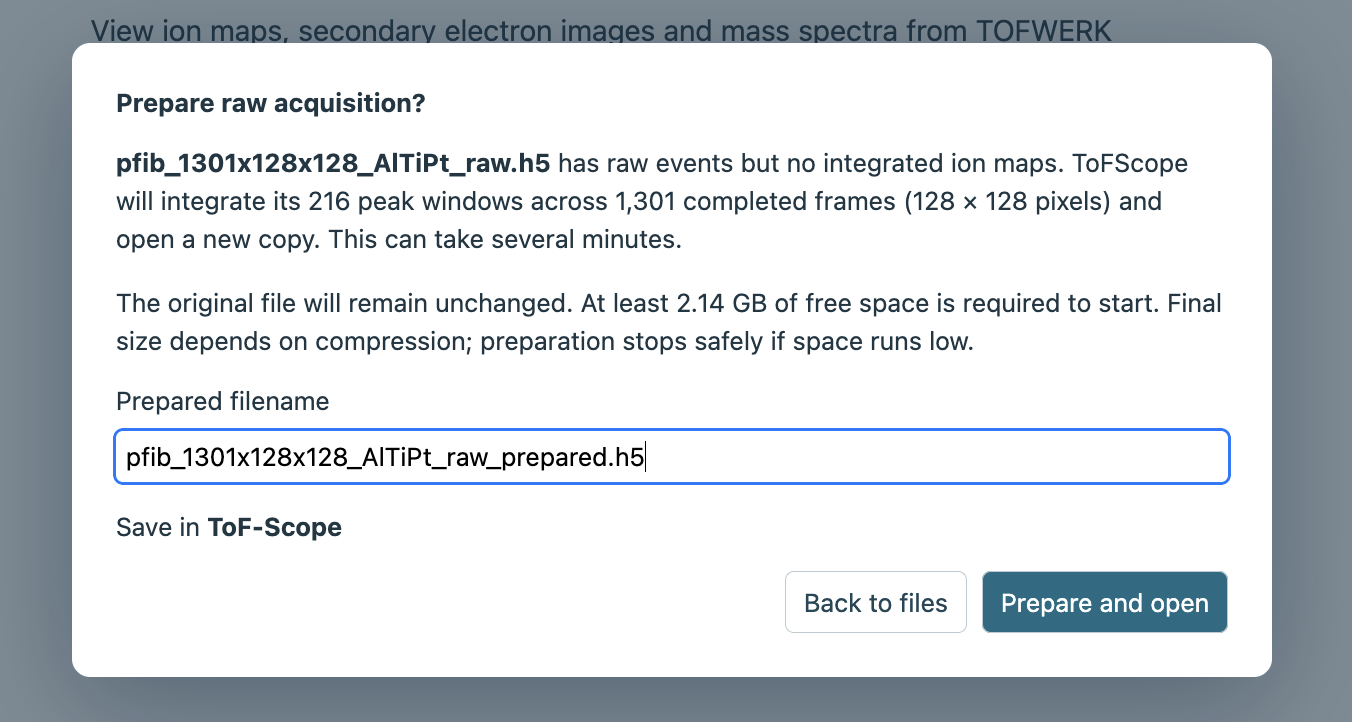
If the acqusition file was never examined in the commercial software, it will contain only raw TOF events without any stored ion maps. If this is the case, ToFScope will warn you upon opening the file and allow you to prepare the file before opening. The preview requires confirmation before ToFScope creates a new copy for exploration, as it can potentially take a few minutes depending on the size of the acquisition.
Signals and views
When you open a file, the Explore screen displays its signals and linked views. For a new analysis, ToFScope initially selects the stored signal with the greatest summed-spectrum intensity among peaks centered at m/z 20 or higher (to avoid common organics at lower m/z values). If no stored peak meets that threshold, it considers all peaks.
In ToFScope, a signal represents ion intensity associated with a selected mass-to-charge range across the acquisition’s image pixels and depth frames. It can come from a channel already stored in the file or from one or more mass windows you define with Create from spectrum tool. A mass range can include contributions from more than one ion, so a signal is not necessarily unique to a particular element or isotope.
The ion image and front projection show the selected signal’s spatial distribution, while its depth profile shows how intensity changes across frames. The mass spectrum helps you examine peaks and define mass windows. Multiple signals can be compared in the profile view.
The region of interest and viewing frame range can be changed to focus on part of the acquisition by clicking and dragging across either the top view or front projection. Additional signals and their profile curves can be shown for comparison. The signals and views guide describes the controls and the distinction between calculated coverage and viewing range.
Additional analysis tools
The depth calibration tool allows you to set known depth values in physical units at one or more frames. The application can then interpolate between these “depth anchors” to provide an estimate of physical depth in the profiles and 3D views. The Peak identification tool compares a peak with candidate isotope ions, and the 3D volume view allows you to inspect the spatial distribution of selected signals in three dimensions.
Saving and sharing results
After you have anlayzed your signal to satisfaction, clicking Save as… will creates a new HDF5 analysis copy. After restarting ToFScope, you can reopen that copy through to resume or re-inspect the saved analysis.
CSV (for profiles) and PNG (for images) exports can be used to share selected results. The saving and exporting guide describes what each output preserves and provides more detail.