Depth calibration
Depth calibration relates acquisition frames to known physical depths. Add one or more reference points, called anchors, then choose whether plots use frames or physical depth.
Open the calibration editor
Select Depth calibration… in the Viewing depths strip above the plots. The editor opens with a profile in original acquisition frames and controls for entering known depths.
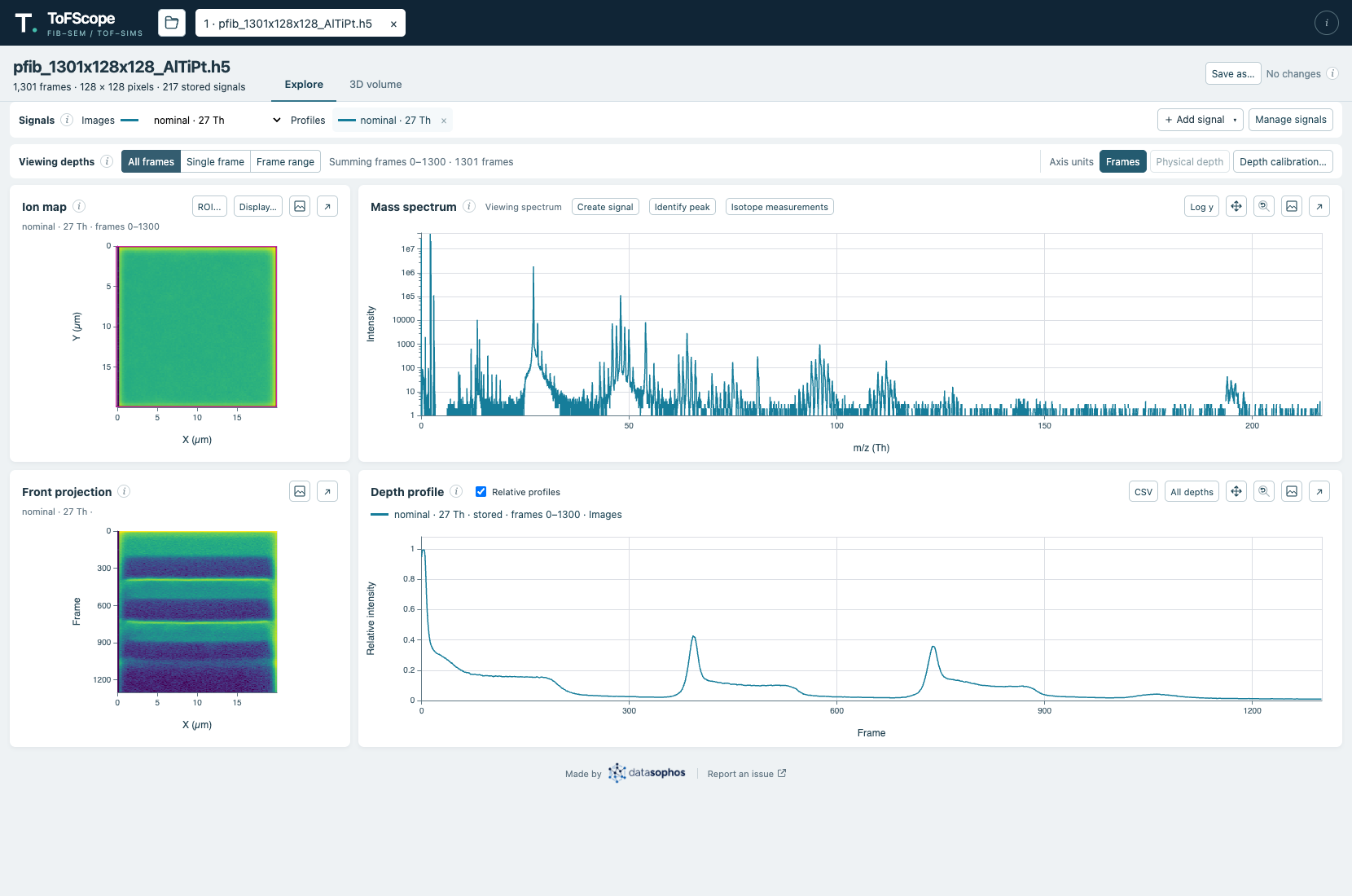
Add calibration anchors
- Click a position on the editor’s calibration profile to select an acquisition frame, or enter its exact number in Selected frame.
- Enter its Known depth in the displayed unit and select Add anchor.
- Repeat for any additional reference points. Select Done when finished.
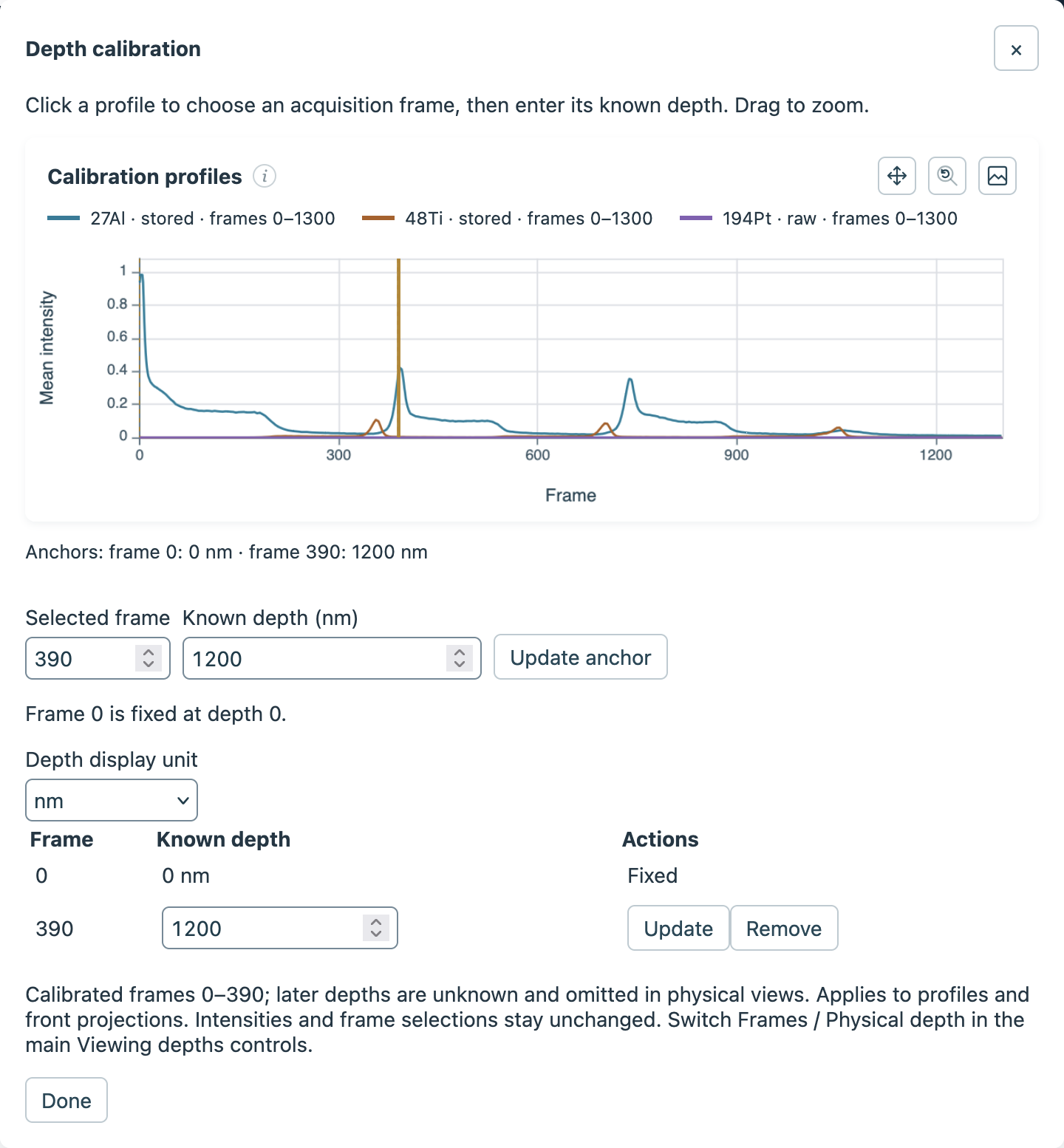
Frame 0 is fixed at depth 0. Both frame numbers and depths must increase strictly between anchors. To change or remove an anchor, use the controls in the anchor table; removing all positive anchors restores frame coordinates. When an existing anchor is selected, the editor shows Update anchor in place of Add anchor, as in the image above.
Choose how depth is displayed
In the editor, Depth display unit selects nm, µm, or mm. In the main Viewing depths strip, use Frames or Physical depth to choose the coordinates shown on plots.
Physical profiles and front projections show only frames between the anchors; depths beyond the calibrated range remain unknown. Selection and keyboard navigation continue to use the original acquisition frames. Changing the display units does not resample the intensities.
Export and interpret calibrated depths
The depth profile’s CSV export includes depth_nm in nanometres, even when the plots display frames. Depth values are blank where they are unknown.