# Peak identification and isotope measurements
The peak identification tool helps to identify a peak by comparing its measured mass-to-charge ratio (m/z) with a catalog of atomic isotope ions. You can then associate a candidate with a signal or create a signal from the peak. Isotope measurements compare selected signals within the current region and viewing frames.
> **Warning: Important Limitations**
>
> The catalog searches **single-atom isotope ions only**. It does not suggest molecular or cluster ions, such as a dimer (two atoms of the same element), ions containing hydrogen or hydroxyl groups, or organic molecular fragments. The charge and polarity filters do include multiply charged *single atoms*, which are different from dimers.
>
> Different species can have similar or overlapping m/z values. A listed atomic candidate is therefore a possible match, not a confirmed identification, and an unlisted molecular ion could contribute to the same peak. Consider other peaks, isotope patterns, mass resolution, and independent evidence when interpreting a result. Measured signal shares are not quantitative composition. See this [review of mass interference in FIB-TOF-SIMS](https://pmc.ncbi.nlm.nih.gov/articles/PMC10003971/) for more detail.
# Open the identification tools
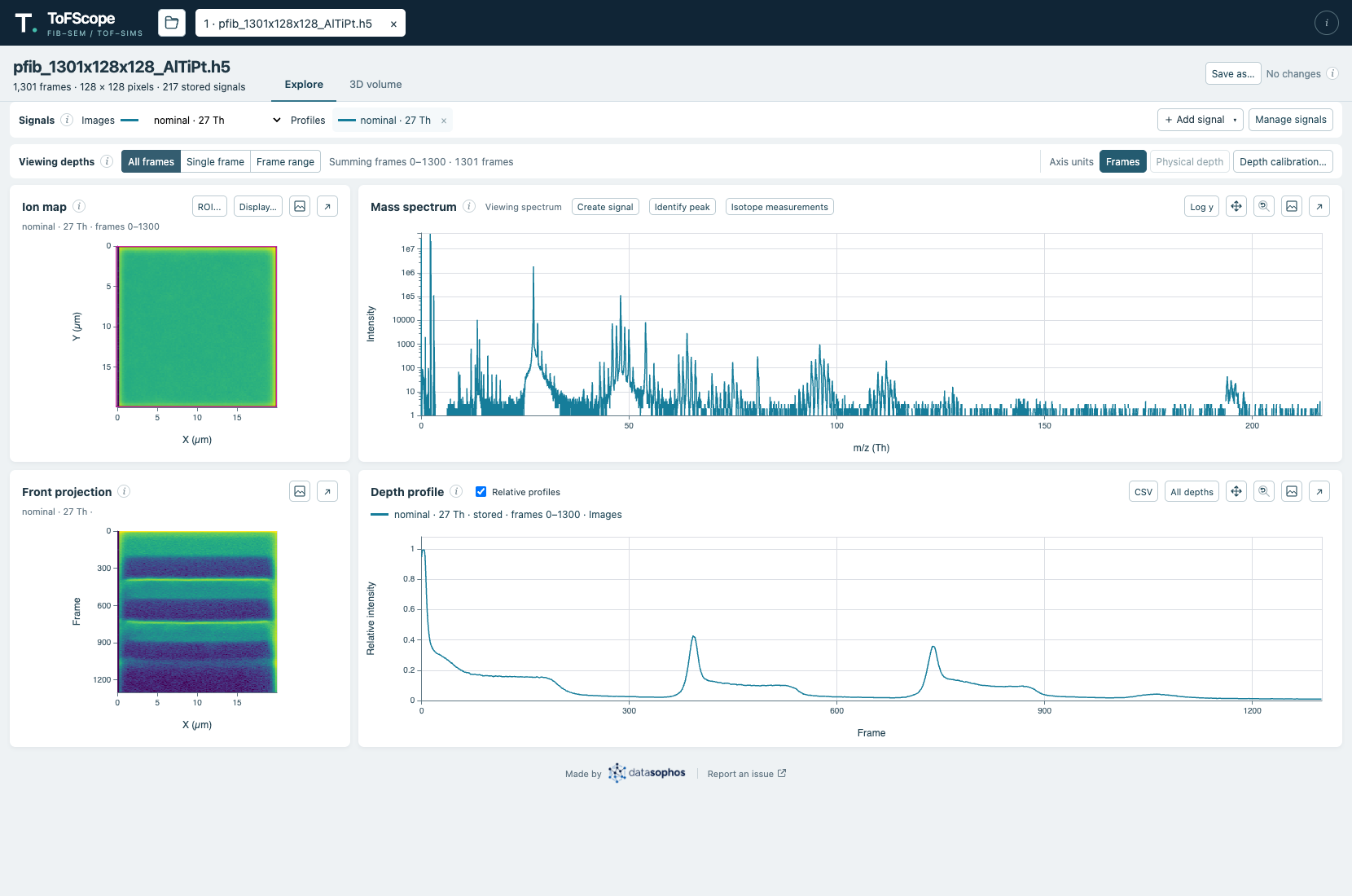
Use [**Identify peak**](#identification-open) or [**Isotope measurements**](#measurement-open) above the mass spectrum.
Open identification and isotope measurements from the mass spectrum header.
# Find isotope candidates
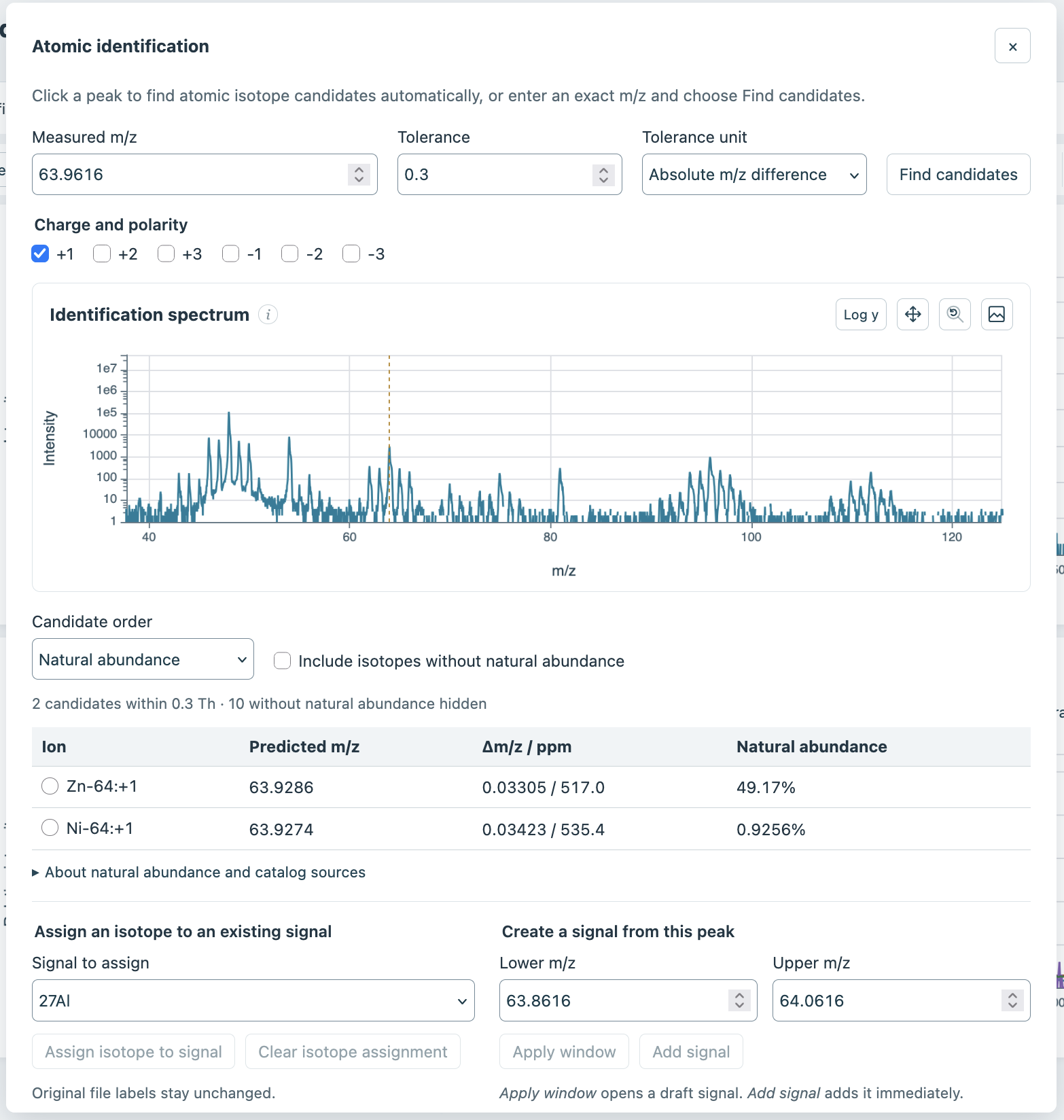
1. Open **Identify peak**, then click a peak in the [identification spectrum](#identification-spectrum) to search for potential matches. Alternatively, enter an exact [**Measured m/z**](#identification-mz) and select [**Find candidates**](#identification-find).
2. Adjust the [tolerance and its unit](#identification-tolerance), or the [charge and polarity](#identification-charge), to change the search. The default absolute tolerance is 0.3 m/z; changing these settings refreshes the candidates.
3. Review the [candidate table](#identification-candidates), which shows predicted m/z, mass error, and natural abundance. Select a candidate to use it in the actions below.
By default, candidates with known natural abundance are ordered by abundance within the tolerance. Use [**Candidate order**](#identification-order) to choose closest-mass ordering, or include isotopes without tabulated natural abundance. The identification spectrum starts with a logarithmic intensity scale; source and reference information are available in the dialog.
The identification dialog compares a measured peak with isotope candidates.
# Assign or create a signal
After selecting a candidate, you can choose one of these actions:
- [**Assign an isotope to an existing signal**](#identification-assign): choose a signal and select **Assign isotope to signal**. This records the candidate and reference information for isotope measurements and saved analyses; it does not change the signal's name, mass window, or intensities, or confirm the identification.
- [**Create a signal from this peak**](#identification-create): enter the mass window and select **Apply window** to open an assigned draft that you can tweak further, or **Add signal** to immediately calculate a new signal across all acquisition frames.
# Measure isotope signals
> **Warning: Warning**
>
> Isotope measurement is a pre-alpha feature and has not been thoroughly tested. If this is a feature you are interested in helping to test, please [contact us](https://github.com/datasophos/ToFScope/issues)!
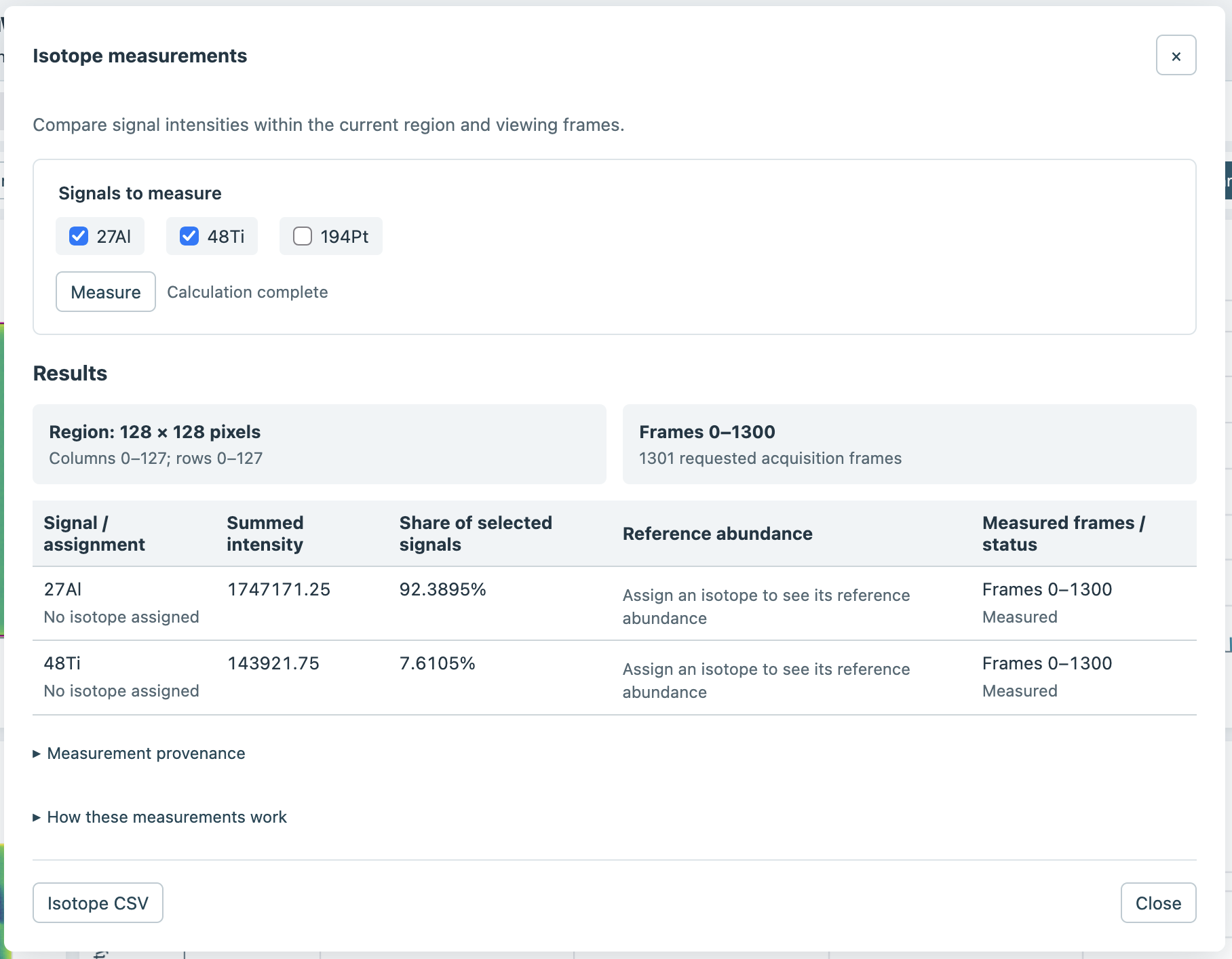
1. Open **Isotope measurements** and choose the [signals to measure](#measurement-signals).
2. Select [**Measure**](#measurement-run). Results use original-resolution data over the current ROI and viewing frames, restricted to the signals' common coverage.
3. Review the [percentage shares and results](#measurement-results), [region and frame summary](#measurement-scope), and any explanations for zero intensity or missing isotope assignments. Expand the [calculation details and provenance](#measurement-details) for more information.
A measurement compares two selected signals across the displayed region and frames.
The results describe ratios within the selected signal set; they are not quantitative composition. Fractions are suppressed when mass windows overlap. If inputs change, captured measurements are marked out of date until you select **Measure** again.
[**Isotope CSV**](#measurement-csv) exports the measurement scope, mass errors, uncertainties, and provenance. **Save as** and reopening the saved analysis also preserve isotope assignments and captured results.